
MANUAL INQUIRY
Need ClaudeCode or GPT recharge help?
Use the inquiry pages for ClaudeCode, GPT recharge, assisted purchase, and team sourcing.
Automatic payment is not configured. Pricing, region support, and timing are confirmed manually.
Why I Ditched GitHub Copilot for Cursor
September 5, 2024
As a developer, AI-powered tools have made my once tedious coding life so much easier, especially GitHub Copilot—it's been a solid companion for every programmer. But recently, I made a surprising decision: I switched from GitHub Copilot to Cursor. If you're considering making this move yourself, or you're torn between the two, let me share my hands-on experience with both tools.
Why Choose Cursor?
We all know GitHub Copilot can analyze code context and serve up suggestions, which definitely saves time. But after using it for a while, I started noticing its limitations, particularly in two areas:
- Code Modification Capability—It Can Only Insert, Not Modify
- Context Reference Capability—Efficiency and Intuitiveness Need Work
Cursor's performance in these two areas really caught my eye. Let me break down why I went with Cursor.
Code Modification Capability: Cursor's "All-in-One Assistant"
Cursor's Magic: Modifying Existing Code
We all know that during the coding process, the two most common operations are inserting code and modifying existing code. For GitHub Copilot, it focuses on inserting code, and when it comes to modifying already written code, it falls short. For example, if a function needs optimization or a variable name needs to be uniformly changed, you might have to manually change them one by one.
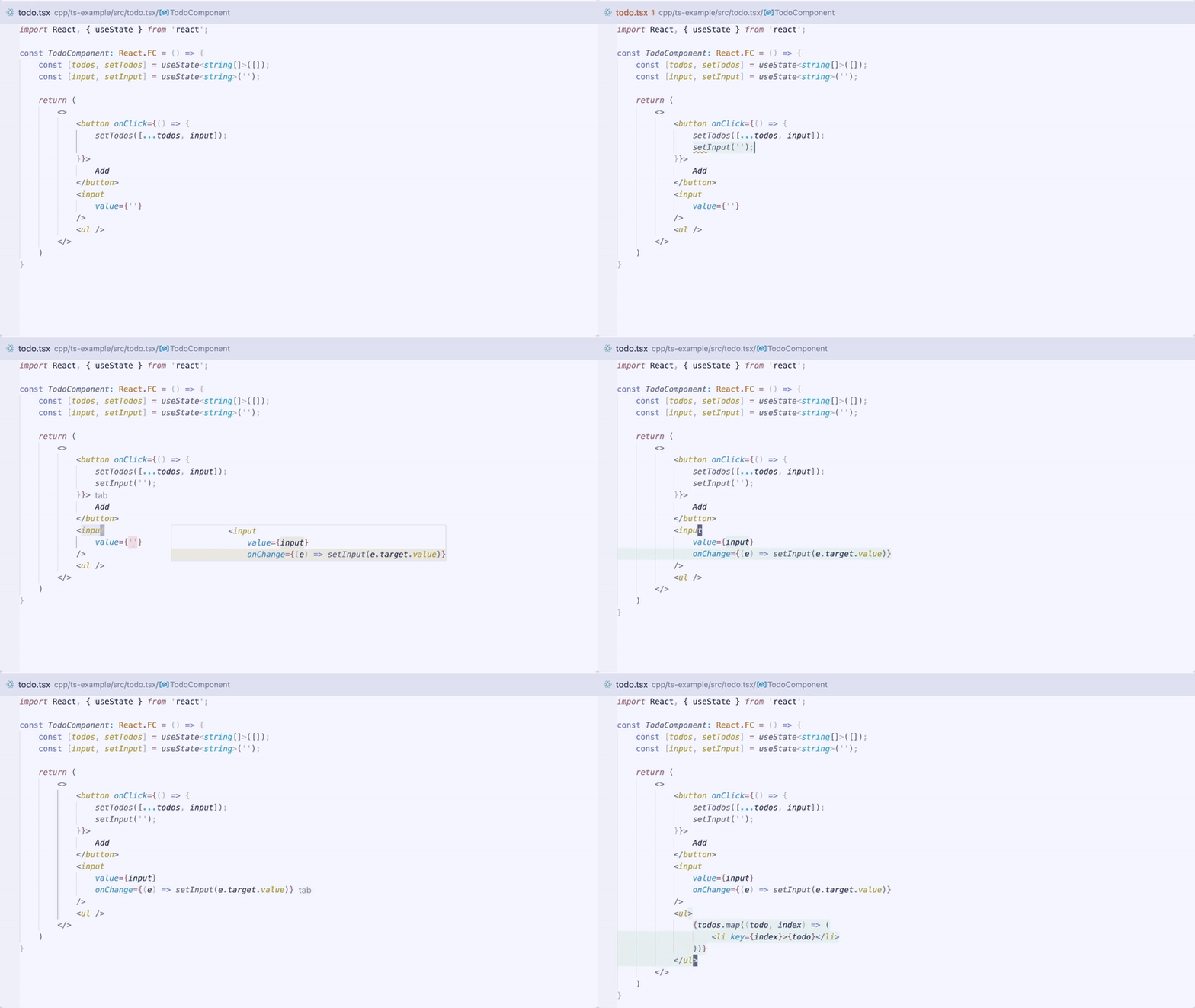
But Cursor is different! It can not only "insert" new code but also intelligently modify existing code. With just a simple press, Cursor will automatically provide modification suggestions based on your current code context. This experience is simply amazing:
- Multi-line editing: Want to modify multiple lines of code? Just press the Tab key, and Cursor will provide multi-line modification suggestions all at once, saving you from manual repetitive changes.
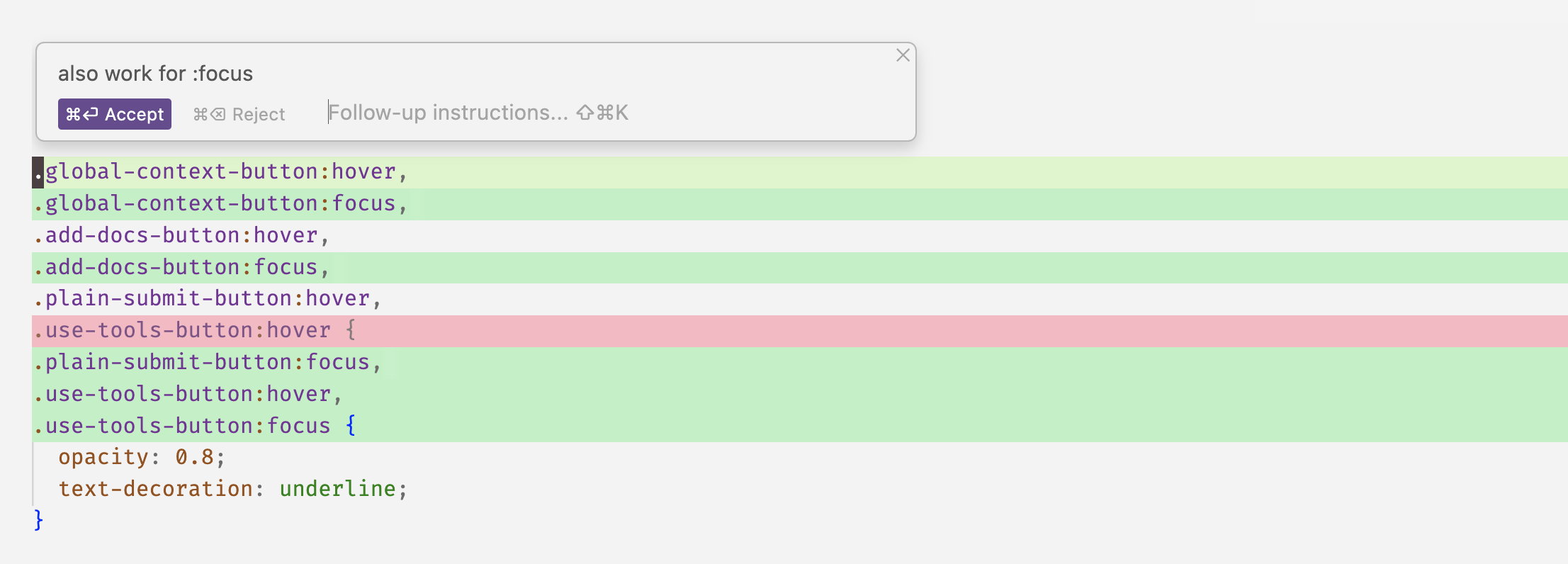
- Inline editing: Ctrl/Cmd K shortcut for one-click code block modification. Enter your desired modification instruction through the prompt bar, and Cursor will intelligently execute the changes and provide a preview. Just click confirm, and the modification is complete.
- Smart prediction: If you modify a variable name, Cursor will cleverly predict that you might also need to modify other related code next, saving you the trouble of manual searching.
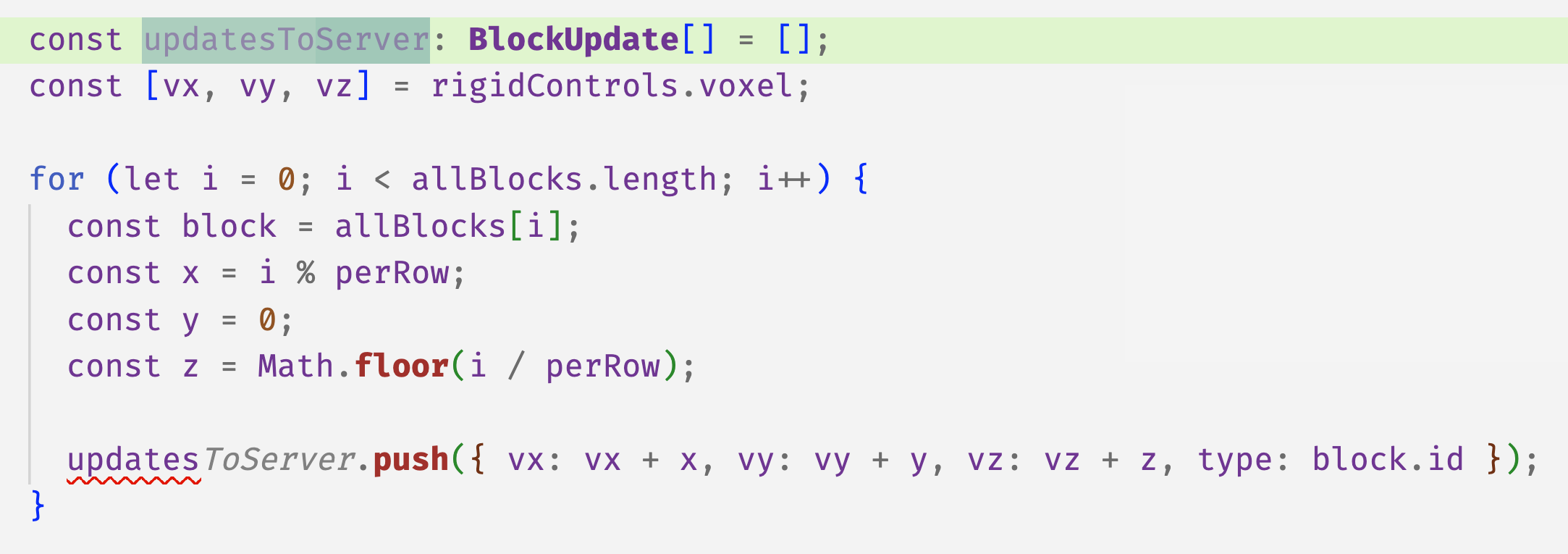
For developers like me who frequently need to modify existing code, Cursor's functionality is the icing on the cake, significantly boosting my work efficiency.
GitHub Copilot's Limitations
Although GitHub Copilot does well in code completion, it can only insert code and cannot modify existing code. This forces me to manually adjust when I need to make extensive code modifications, rather than easily getting it done with one click like Cursor.
Context Reference Capability: Cursor Keeps You from Getting Lost
Cursor: Context reference, clear and straightforward
In AI-assisted programming, context understanding is crucial. A good AI tool should be able to clearly and intelligently understand your code context and quickly provide relevant reference information. Cursor's performance in this area is nothing short of perfect.
Just type @ in the AI input box, and Cursor will pop up relevant context suggestions based on your input. These suggestions are very intuitive, letting you know at a glance what context information each option represents. What's special is that Cursor generates a local index based on your code project, so you don't have to worry about needing an internet connection every time you query context.
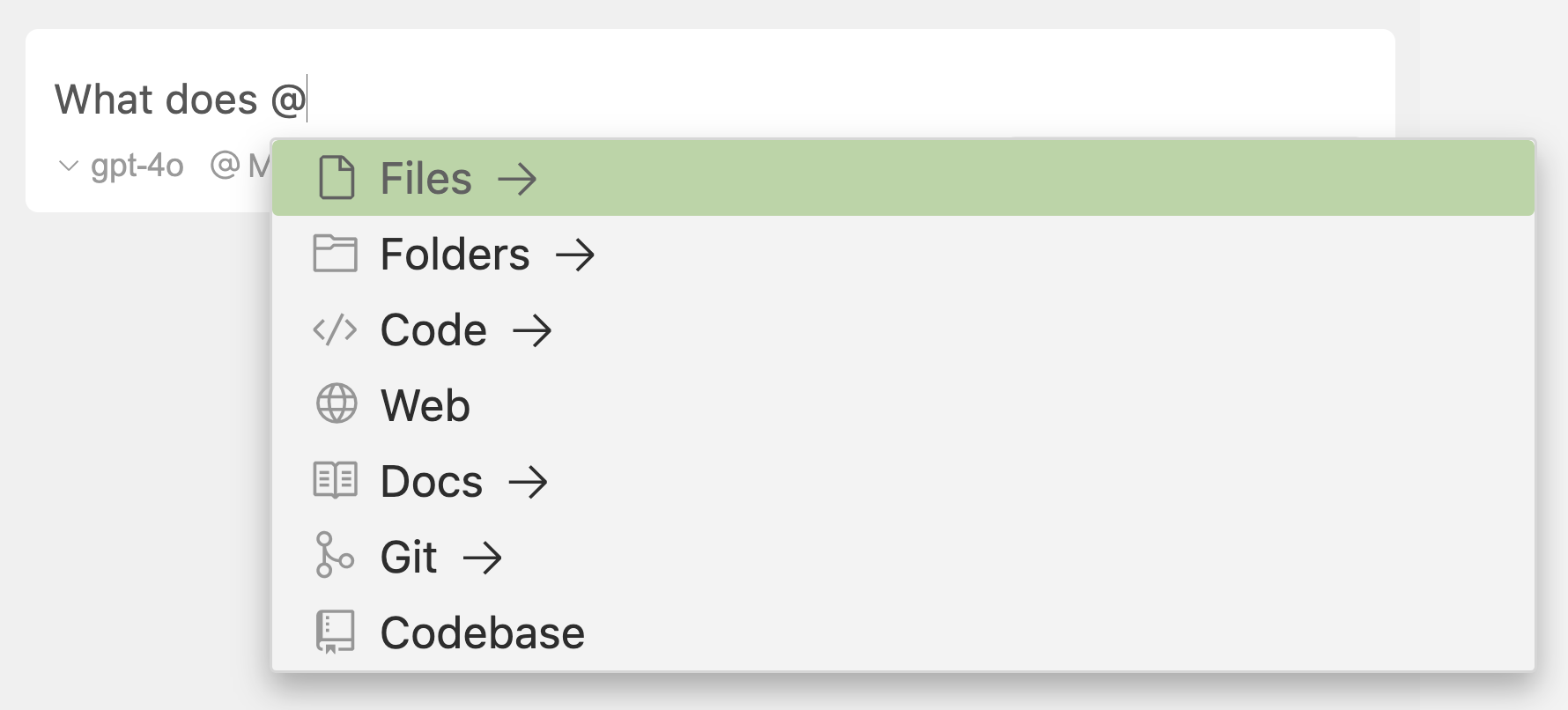
This local indexing and clear referencing approach has significantly improved my work efficiency. No redundant steps—I can directly find the context I need.
GitHub Copilot's Complex Referencing Approach
In contrast, GitHub Copilot's context referencing seems somewhat complex. It uses @ and # to identify different types of references and relies on remote APIs to retrieve relevant content. While it can provide some context information, this approach isn't intuitive enough and often feels less smooth to me.

Overall, Cursor is clearly more efficient and user-friendly with context referencing, and has reduced the frequency of me getting "lost" during development.
Why I Choose Cursor?
- Efficiency in code modification: Whether it's multi-line edits or intelligent predictions, Cursor makes me more comfortable when modifying existing code, greatly boosting work efficiency.
- Intelligent context referencing: Cursor's local indexing and clear referencing features make my coding more fluid, without wasting time searching for context.
- Suited for complex projects: I often need to work with multiple files simultaneously, and Cursor's multi-file editing and generation capabilities make me more efficient in complex projects.
Conclusion
If you're like me and frequently make modifications and adjustments in your code, or need to constantly reference context when handling complex projects, I highly recommend giving Cursor a try. Its efficient code modification capabilities and intelligent context referencing features can really level up your development experience.
Have you tried Cursor or GitHub Copilot? Which one do you lean towards? Feel free to share your thoughts and experiences! I'll also be sharing more Cursor tips and content from Charlii down the road.
Follow Charliiai for more AI insights.
MANUAL INQUIRY
Need ClaudeCode or GPT recharge help?
Use the inquiry pages for ClaudeCode, GPT recharge, assisted purchase, and team sourcing.
Automatic payment is not configured. Pricing, region support, and timing are confirmed manually.