
MANUAL INQUIRY
Need ClaudeCode or GPT recharge help?
Use the inquiry pages for ClaudeCode, GPT recharge, assisted purchase, and team sourcing.
Automatic payment is not configured. Pricing, region support, and timing are confirmed manually.
Step-by-Step Guide: Connect AI Large Language Models to Xiaomi Smart Speaker for Free - No Coding Required, Beginner-Friendly Detailed Tutorial!
- This article is from Equity AI
This tutorial covers how to integrate Large Language Models (AI) into Xiaoai Smart Speaker.
This tutorial comes from a contribution by @䦜, who has no computer science or coding background whatsoever, but with the help of large language models, completed the entire integration process.
From a beginner's perspective, they've summarized the steps into a practical beginner-level tutorial, lowering the barrier to entry.
Plus, they repeated the process twice following these exact steps to ensure it works.
So if you're interested but worried about your technical background, go ahead and give it a try - we're confident you can do it too!
This tutorial takes about 35 minutes once you're familiar with it. We recommend following and bookmarking first so you don't lose it.
Original Tutorial:
Official Project Description:
Project address:
Official tutorial video: (not very beginner-friendly) https://www.bilibili.com/video/BV1N1421y7qn/?share_source=copy_web&vd_source=5d4e78ff2a0dc6a661baa65f479199c1
Video companion PPT file on Lanzou Cloud: https://www.lanzout.com/iLHm2238xf5c
Aliyun Drive: https://www.alipan.com/s/Yf2RQvN961T
Supported Xiaomi speaker device models
✅ Runs perfectly
Known Xiaoai speaker models that can run Mi-GPT perfectly:
ㅤ | ㅤ | ㅤ | ㅤ | ㅤ | ㅤ | ㅤ |
名称 | 型号 | ttsCommand | wakeUpCommand | playingCommand | streamResponse | 反馈来源 |
小爱音箱 Pro | LX06 | \[5, 1\] | \[5, 3\] | - | TRUE | @idootop |
小爱音箱 mini | LX01 | \[5, 1\] | \[5, 2\] | \[4, 1, 1\] | TRUE | @gsscsd |
小爱音箱 Play(2019 款 | LX05 | \[5, 1\] | \[5, 3\] | \[3, 1, 1\] | TRUE | @wt666666 |
小爱音箱 万能遥控版 | LX5A | \[5, 1\] | \[5, 3\] | - | TRUE | @imhsz |
小米 AI 音箱 | S12 | \[5, 1\] | \[5, 3\] | - | TRUE | 微信: CMSJ |
小米 AI 音箱(第二代 | L15A | \[7, 3\] | \[7, 1\] | \[3, 1, 1\] | TRUE | 微信: 龙之广 |
小爱智能家庭屏 10 | X10A | \[7, 3\] | \[7, 1\] | - | TRUE | @IDarkBoss |
Xiaomi Sound Pro | L17A | \[7, 3\] | \[7, 1\] | - | TRUE | 微信: eof |
? Runs normally
Some models' MIoT interface doesn't support querying device playback status or has abnormal status queries, such as the Xiaomi Speaker Play Enhanced Edition (L05C), which will cause some MiGPT functions to be abnormal and unable to use continuous conversation, etc. In this case, you need to disable streamResponse.
Xiaoai speaker models that can run Mi-GPT normally but don't support continuous conversation:
ㅤ | ㅤ | ㅤ | ㅤ | ㅤ | ㅤ | ㅤ |
名称 | 型号 | ttsCommand | wakeUpCommand | playingCommand | streamResponse | 反馈来源 |
小爱音箱 | L06A | \[5, 1\] | \[5, 2\] | - | FALSE | @zhanglc |
小爱音箱 Play | L05B | \[5, 3\] | \[5, 1\] | - | FALSE | @BiuBiu2323 |
小米小爱音箱 Play 增强版 | L05C | \[5, 3\] | \[5, 1\] | - | FALSE | @lyddias |
Xiaomi 智能家庭屏 6 | X6A | \[7, 3\] | \[7, 1\] | - | FALSE | @Hongwing |
Redmi 小爱触屏音箱 Pro 8 英寸 | X08E | \[7, 3\] | \[7, 1\] | - | FALSE | @shangjiyu |
小爱音箱 Art | L09A | \[3, 1\] | \[3, 2\] | - | FALSE | @zwsn |
小爱触屏音箱 | LX04 | \[5, 1\] | \[5, 2\] | - | FALSE | @ilovesouthpark |
❌ Not supported
Xiaoai speaker models that are completely incompatible with MiGPT:
ㅤ | ㅤ | ㅤ |
名称 | 型号 | 反馈来源 |
小米小爱音箱 HD | SM4 | @romantech |
小米小爱蓝牙音箱随身版 | - | 微信: 明天 |
Example devices: I'm using the Xiaomi AI Speaker Gen 1, S12
- First, just look at the model number and check if your Xiaomi speaker model is in the list above
Local Deployment Tutorial (Node.js)
- This solution requires your computer to keep the migpt service running at all times. Once you turn off the computer, the large language model stops working. You can think of Xiaoai as your computer speaker, but one that can answer questions anytime - actually pretty interesting
Preparation complete, deployment begins:
Step 1: Software and environment configuration needed on your computer:
- Python 3.8 or above (https://www.python.org/)
- Vscode ( https://code.visualstudio.com/
- nodeJS (https://nodejs.org/zh-cn
- Github account required (https://github.com/)
- GitHub is often inaccessible. You can download Steam++, https://steampp.net/
- For installation instructions, refer to Teacher Dayu's tutorial: Install VSCode, NodeJS, Git, etc. on your local computer
Please install the above software on your own (link: https://waytoagi.feishu.cn/wiki/EJuiwrcJCi8uW1kTutrcBtBlnyc) Important! After installation, you need to configure the environment, otherwise errors will occur during the deployment process
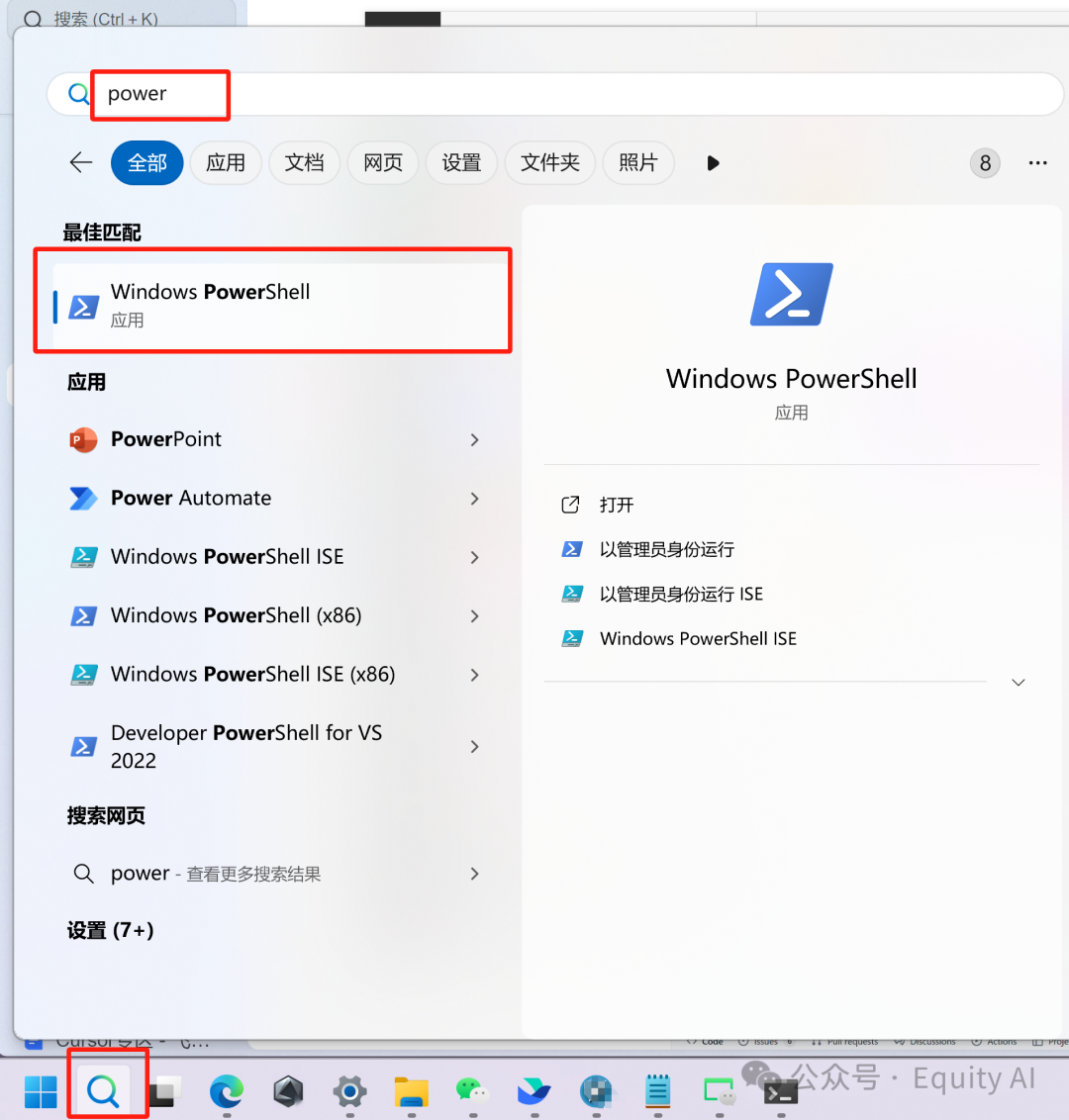
- Search for windows powershell
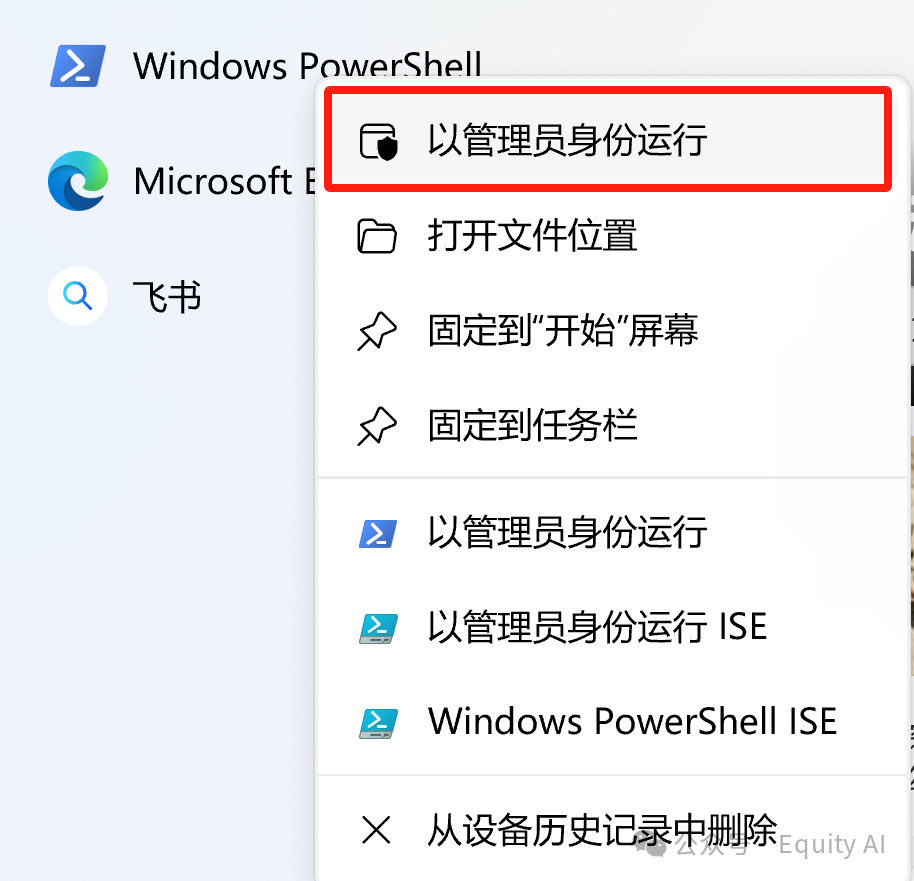
- Run as administrator to enter the command line tool page
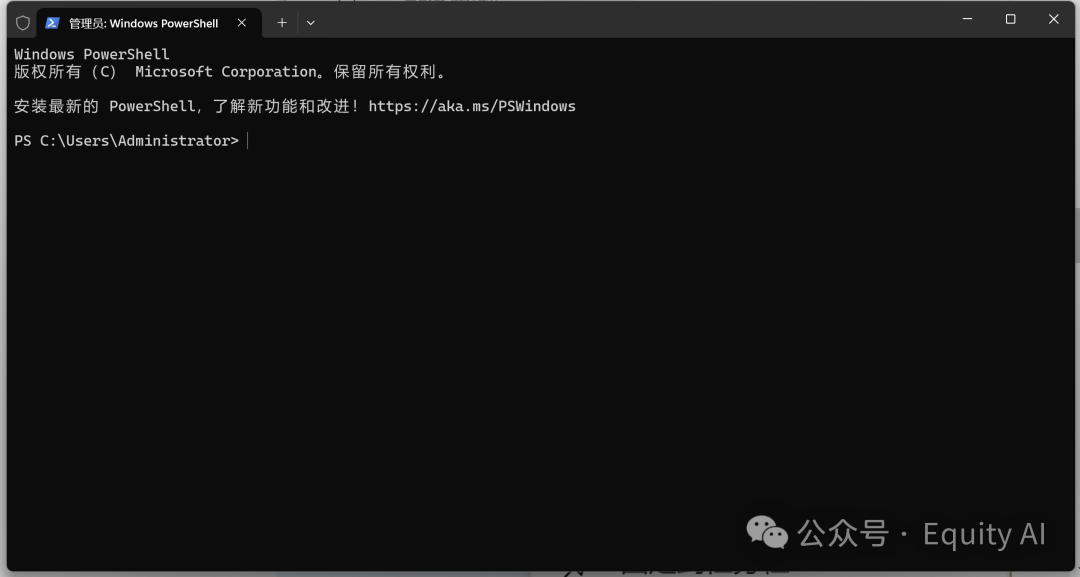
- Enter the following command and press Enter
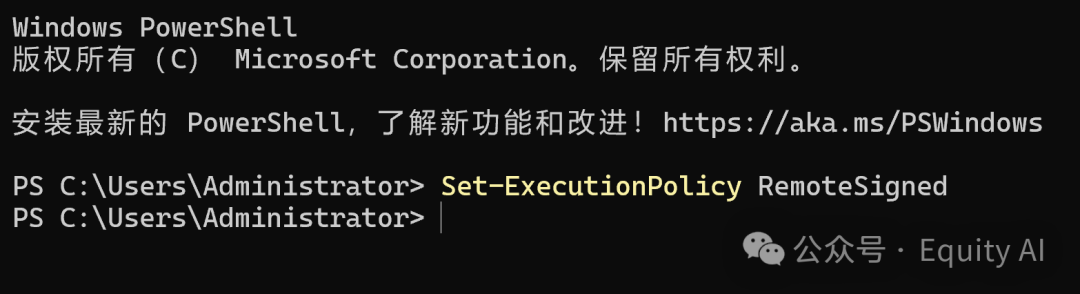
The first time you run it, the following window will pop up. When the execution policy change confirmation appears, enter A and press Enter to confirm, then close the run window

- In this step, we're installing software and configuring the basic environment
Step 2: Prepare the Xiaomi speaker
- Check the model of your Xiaomi speaker
- Model 1: Xiaomi AI Speaker (1st Generation), according to the table mentioned above, the model code is S12 (if the bottom label is inconsistent, please refer to the model code in the table)
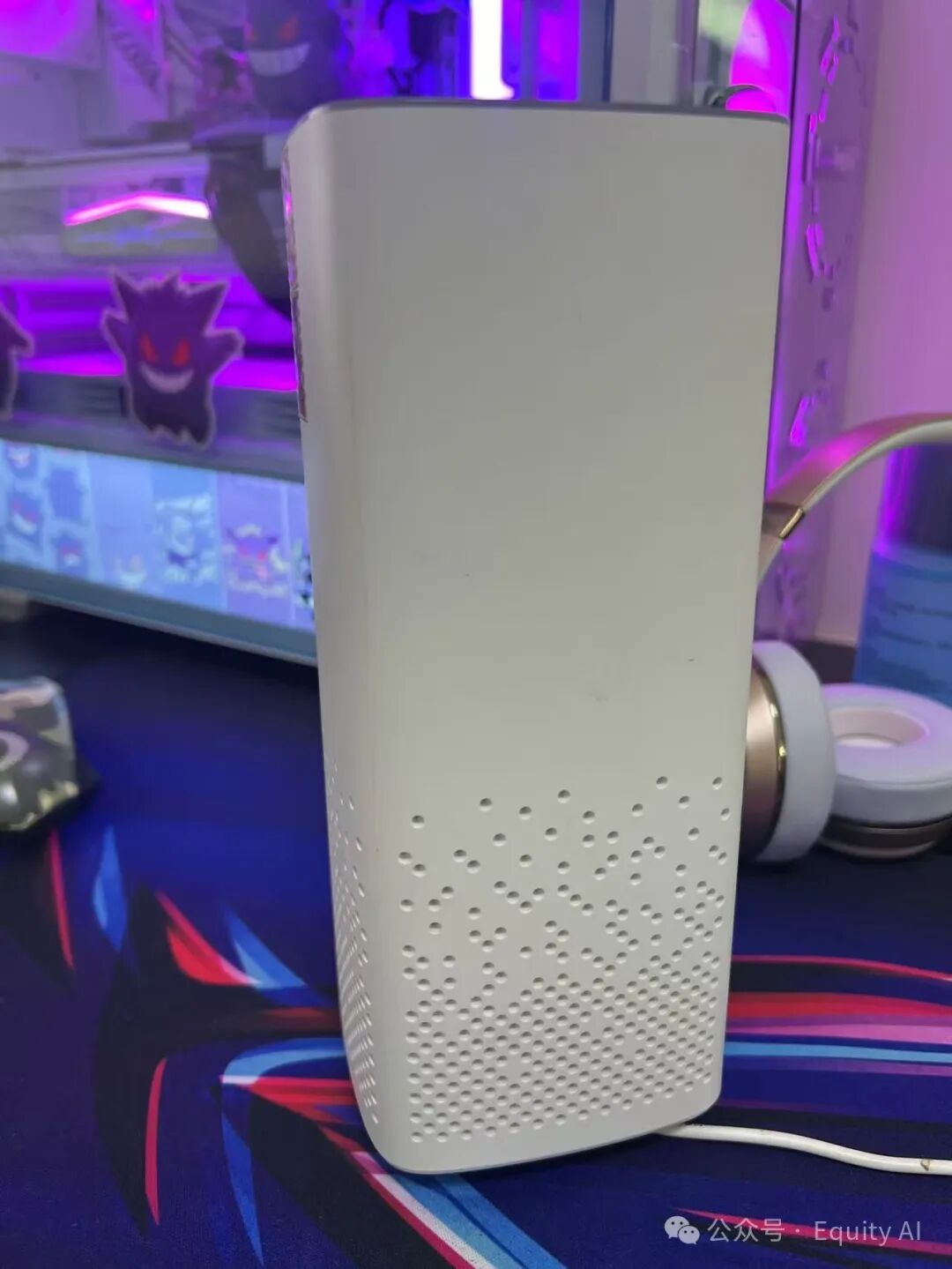
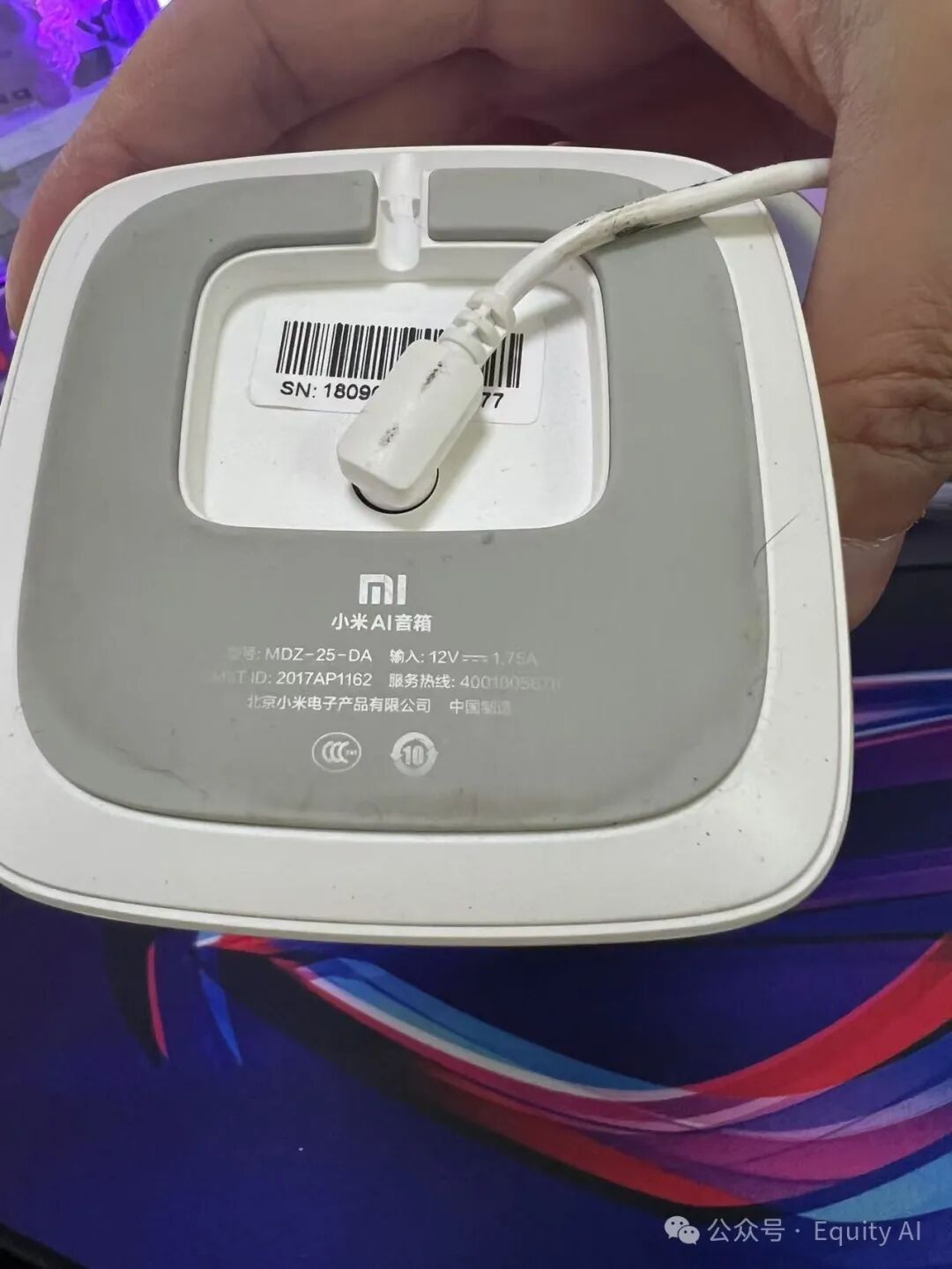
- Model 2: Xiaomi AI Speaker (2nd Generation), model code is L15A (check the bottom label)
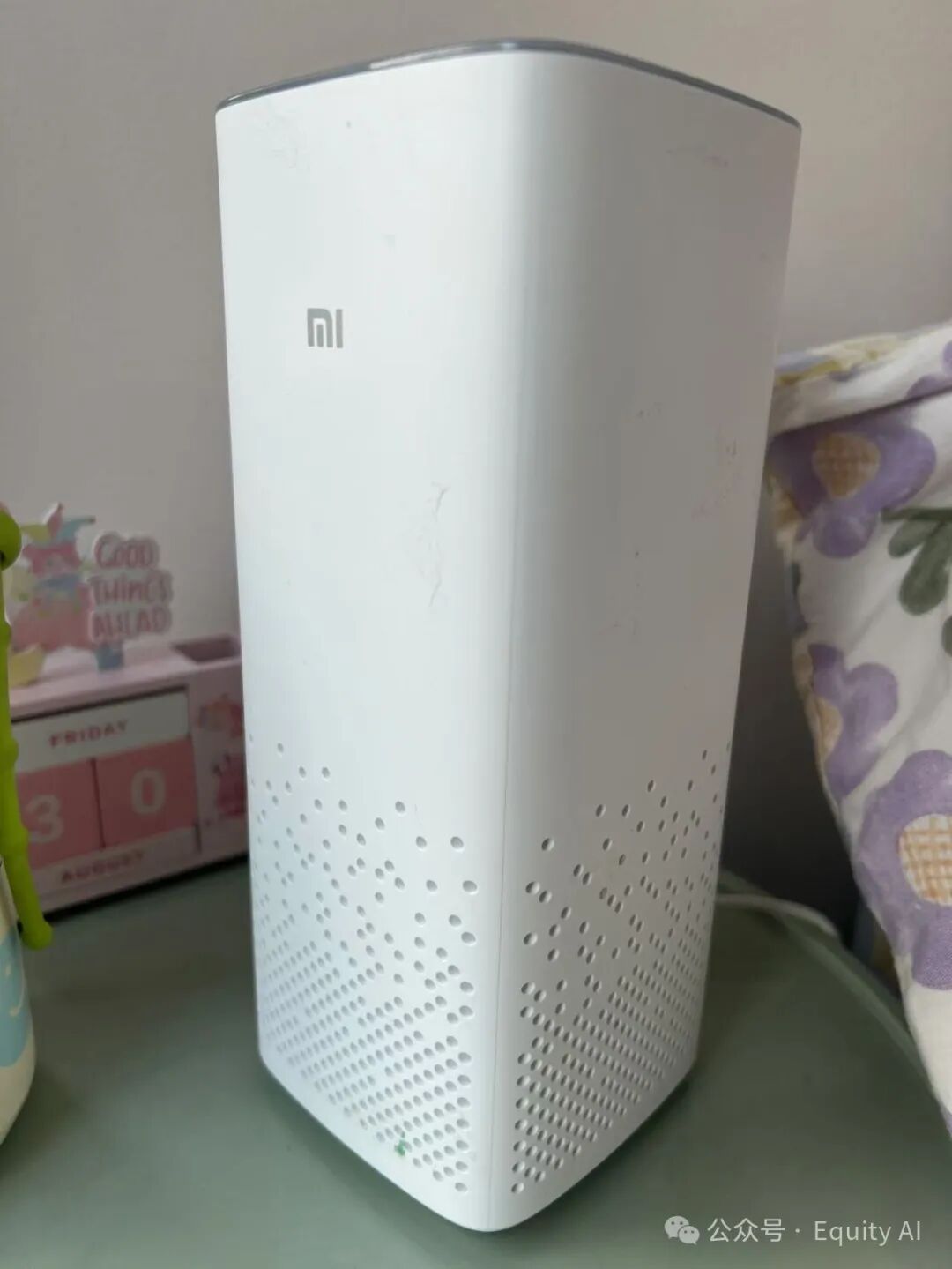
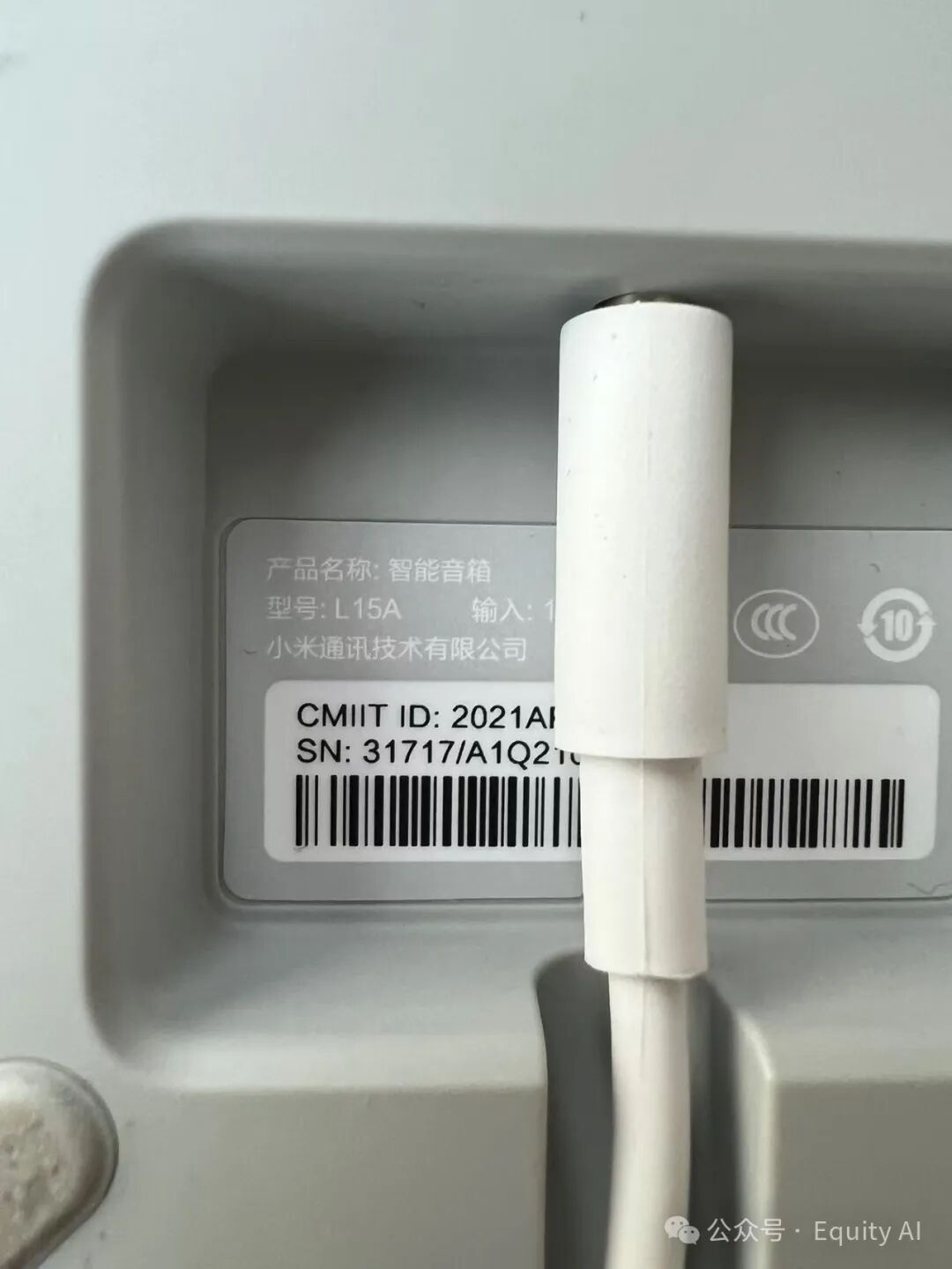
- Download the Mi Home APP or Xiaoai Speaker APP on your phone. Here are a few parameters to remember:
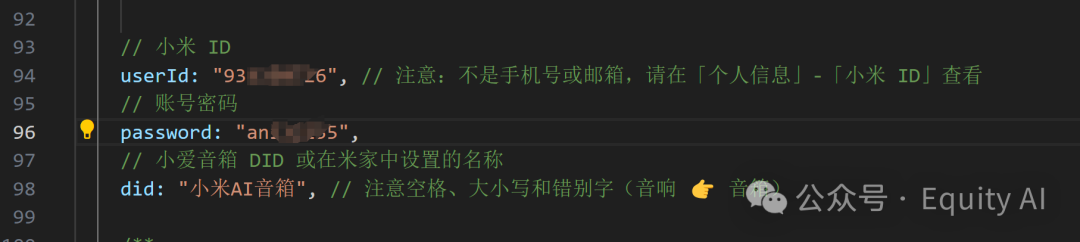
- Xiaomi Account: After logging into Mi Home or Xiaoai Speaker APP, you can see the ID in the "My" interface. Mine here is a string of numbers starting with 9
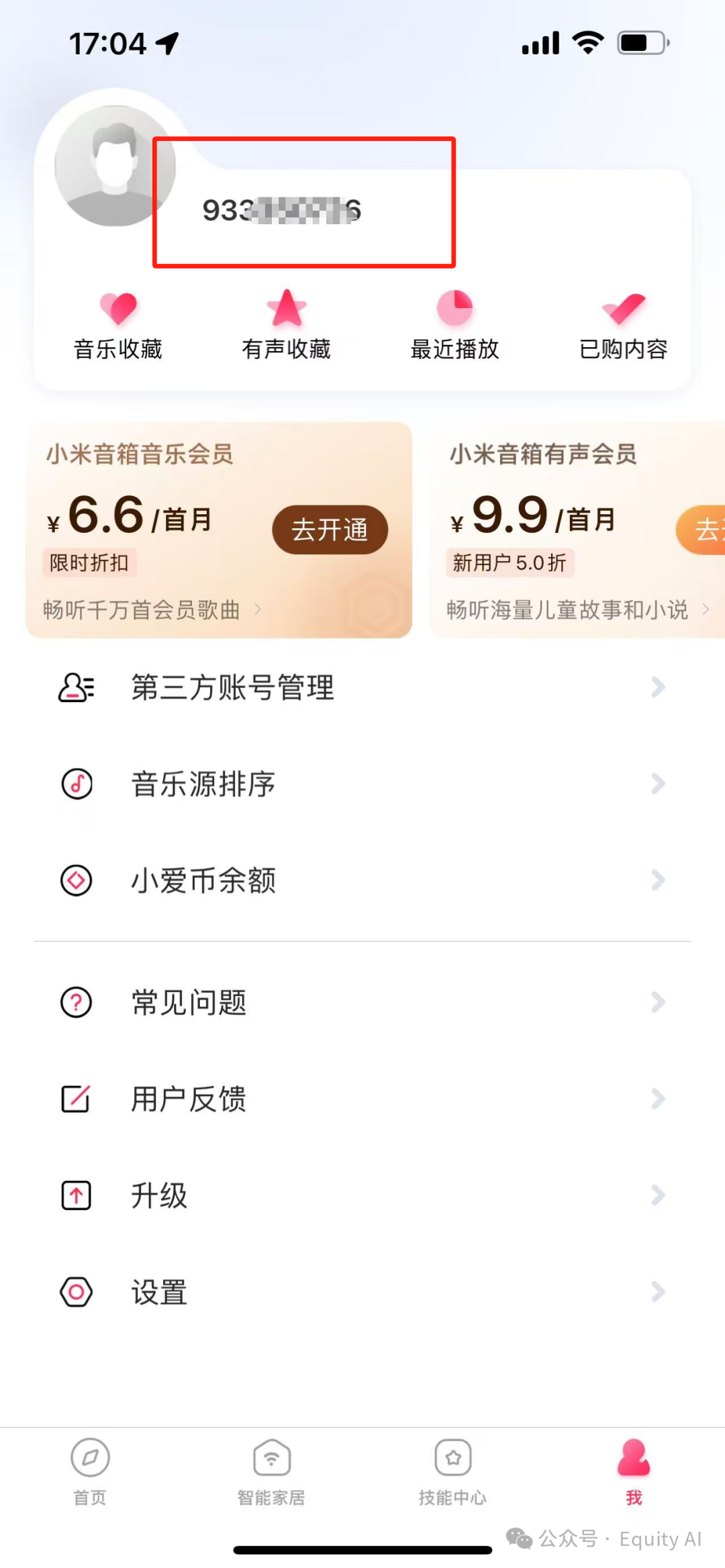
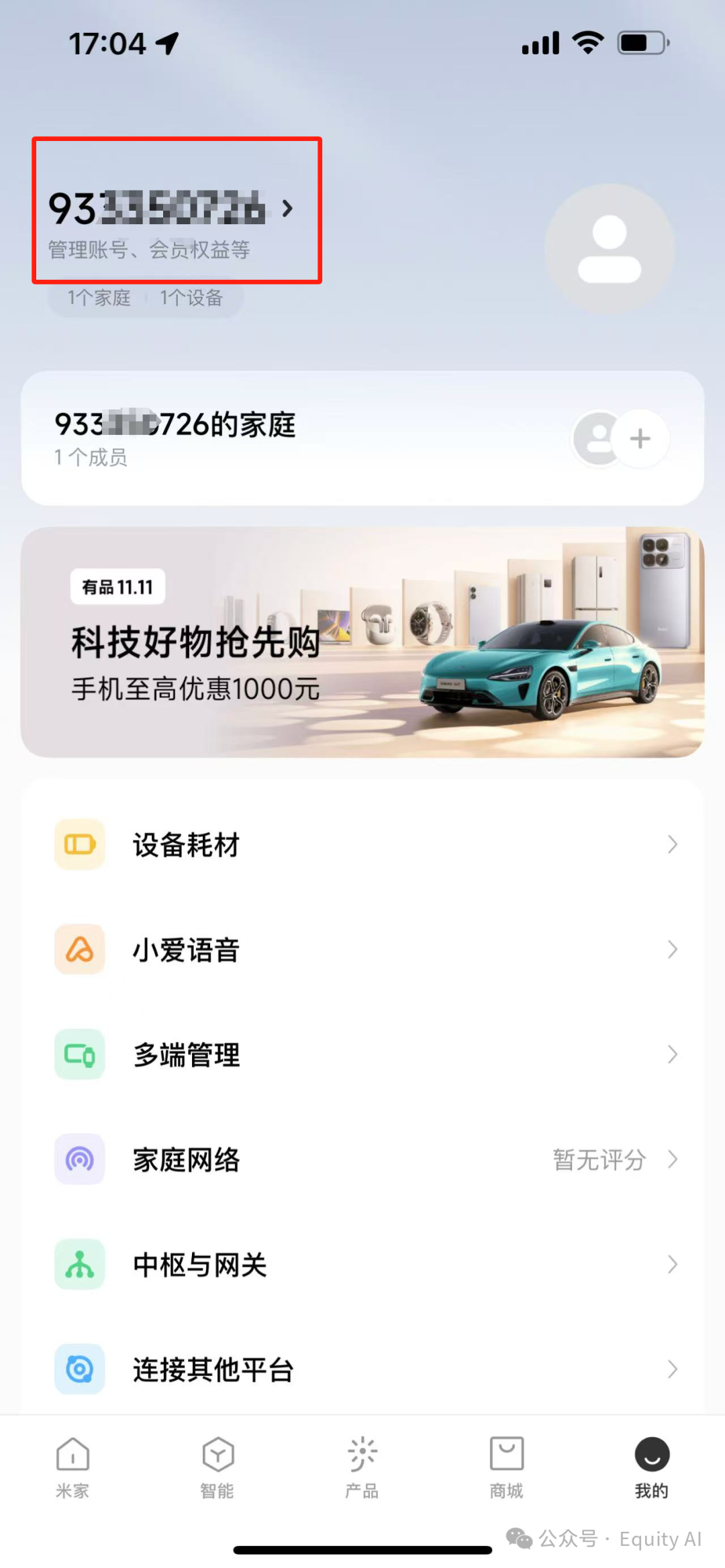
- Remember the password for logging into your Xiaomi account: Make sure to log in using the password, as you'll need it for configuration later
- Configure the speaker device through Mi Home APP or Xiaoai Speaker APP, connect it to your home network. Please ensure the network you're connected to is on the same LAN as your computer
- Remember the speaker's name: Mine here is Xiaomi AI Speaker
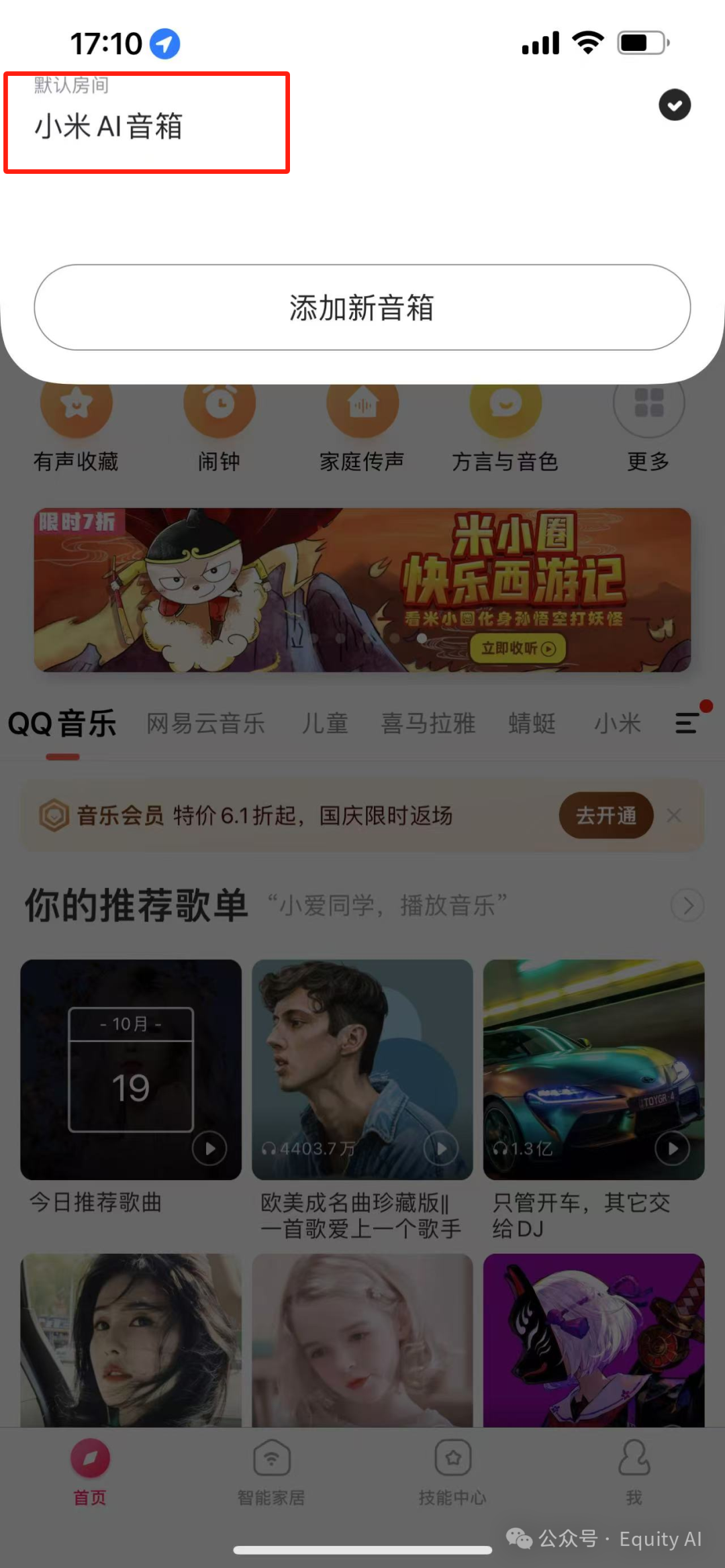
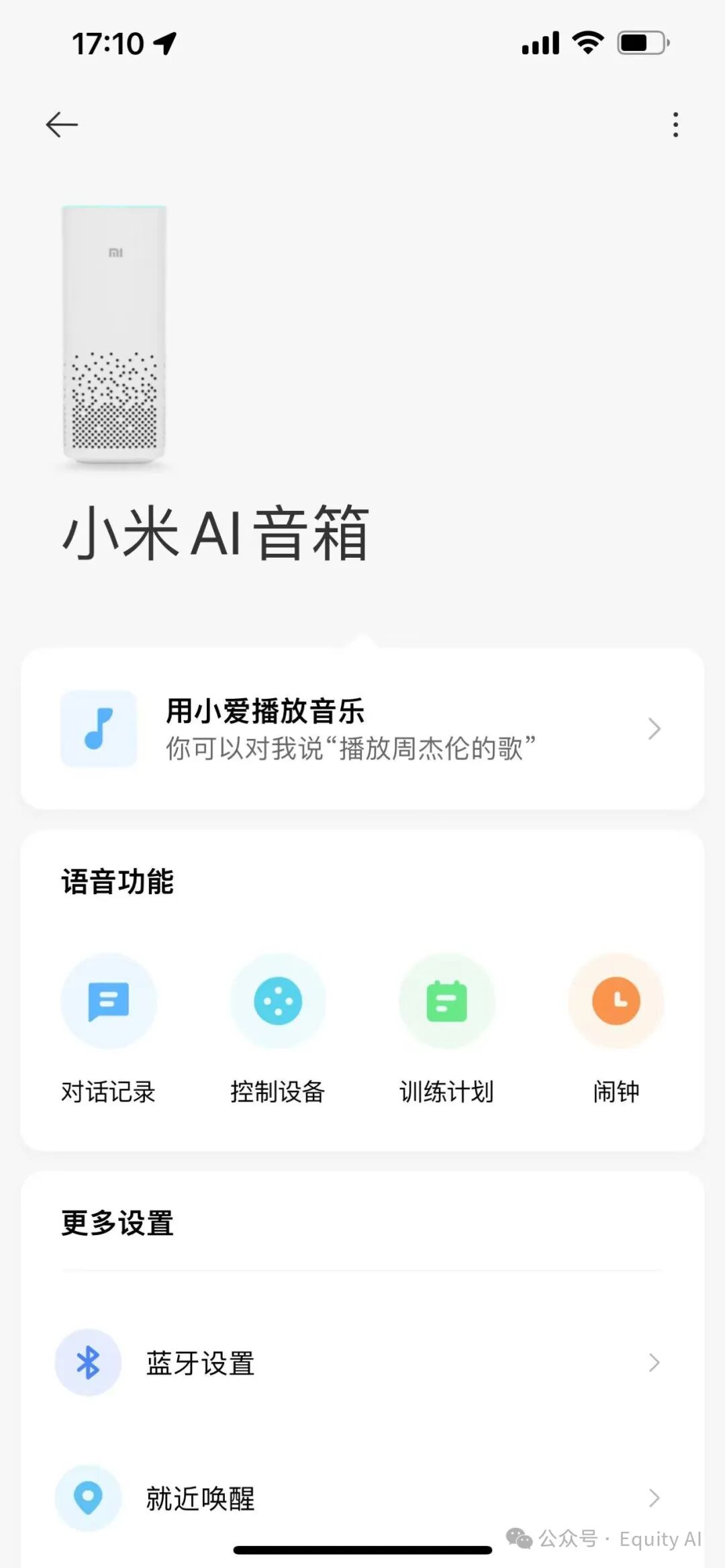
- At this step, the parameters we need are: Xiaomi UID, login password, and the speaker's bound name. The name I bound here is Xiaomi AI Speaker
Step 3: Apply for the large model's API interface, using Silicon as an example
- Official tutorial documentation for API integration:
- Taking the silicon API I typically use as an example, there are numerous open-source models (Yi, Qwen, Llama, Gemma, etc.) available for free. It also comes with a 14 yuan trial credit with an unknown expiration date - in my opinion, this is the most convenient and affordable API interface out there
- silicon registration and usage URL:
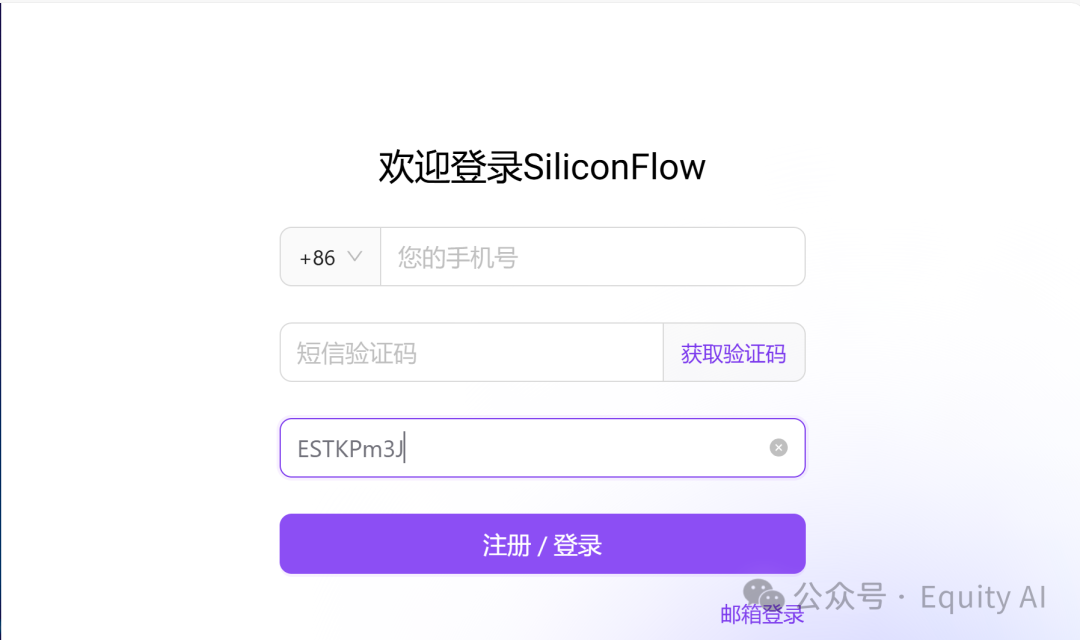
Invitation code: ESTKPm3J (thanks for your support)
- After registering and logging in, click on API Keys in the left sidebar, then click Create New API Key
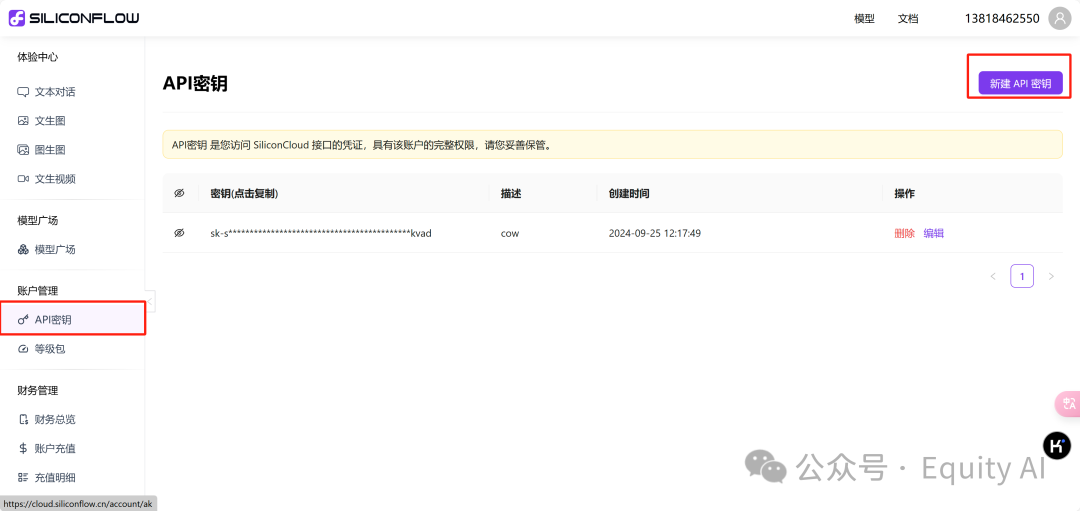
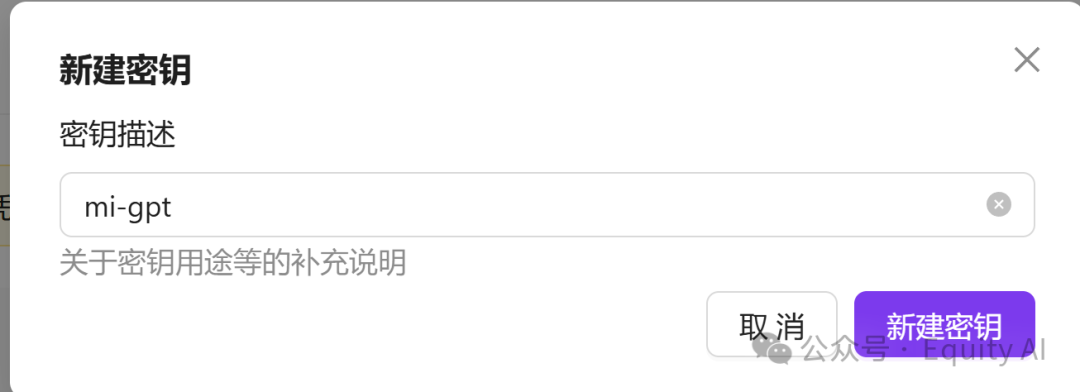

Click on the key to copy the API key
- silicon supports various large language models, as well as text-to-image, image-to-image, and text-to-video generation - feel free to explore on your own
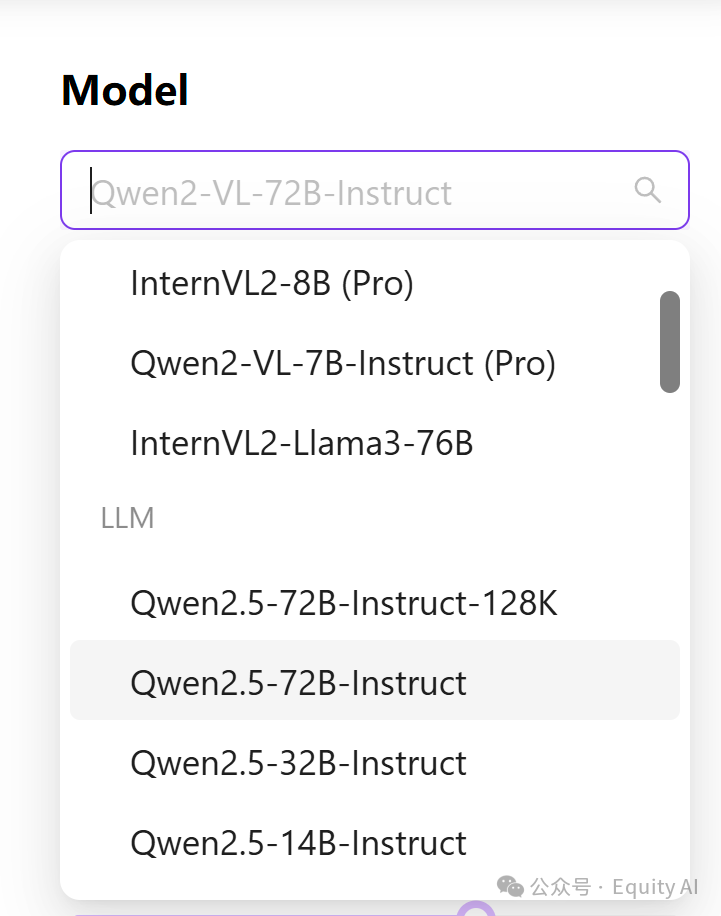
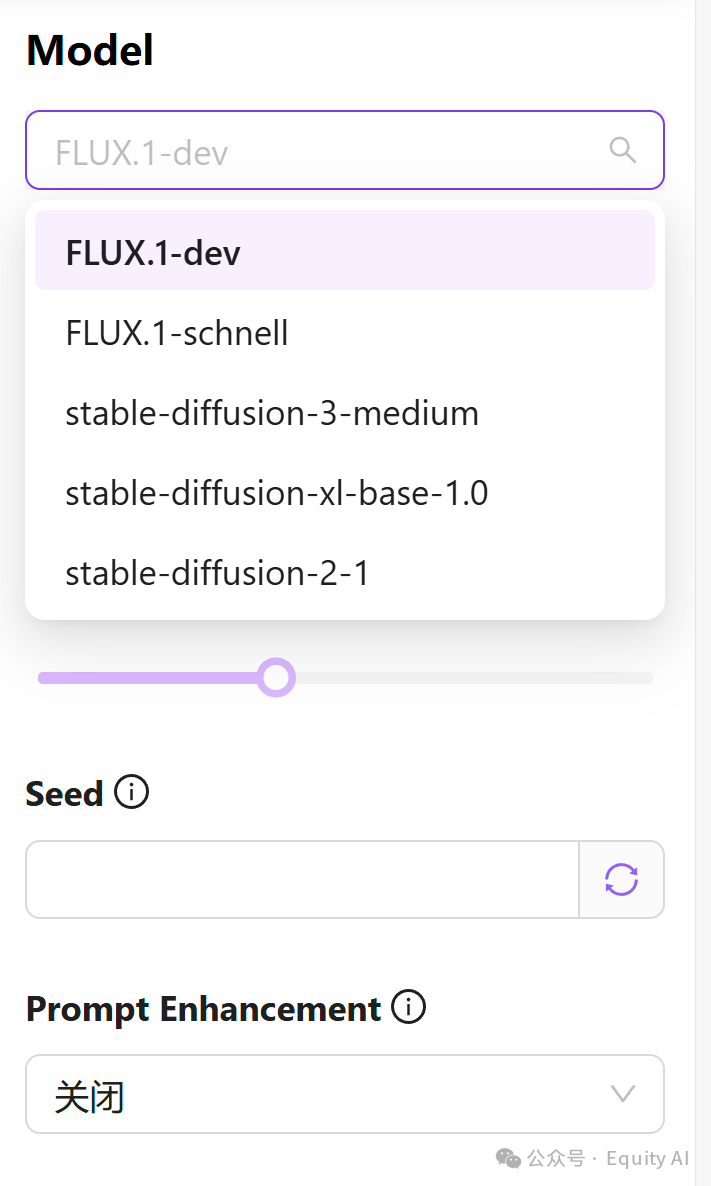
- At this step, once you have the silicon key, we can call the Qwen 2.5 model, which is perfectly adequate for daily conversations and is completely free to use
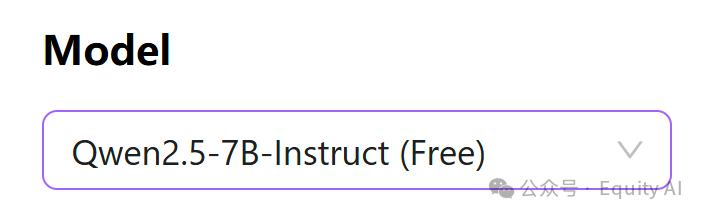
- In this step, we registered a silicon account, applied for an API key, and saved the key - we'll need to enter it in the configuration later
Step 4: Go to GitHub and copy the mi-gpt project
- Open the official repository: https://github.com/idootop/mi-gpt
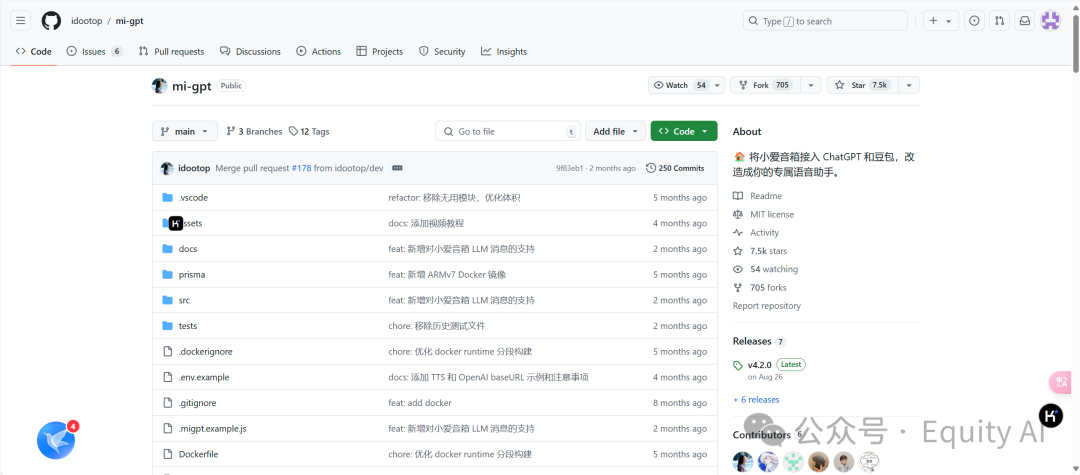
- Fork the project to your own account
- Click Fork

- Click Create fork in the bottom right corner
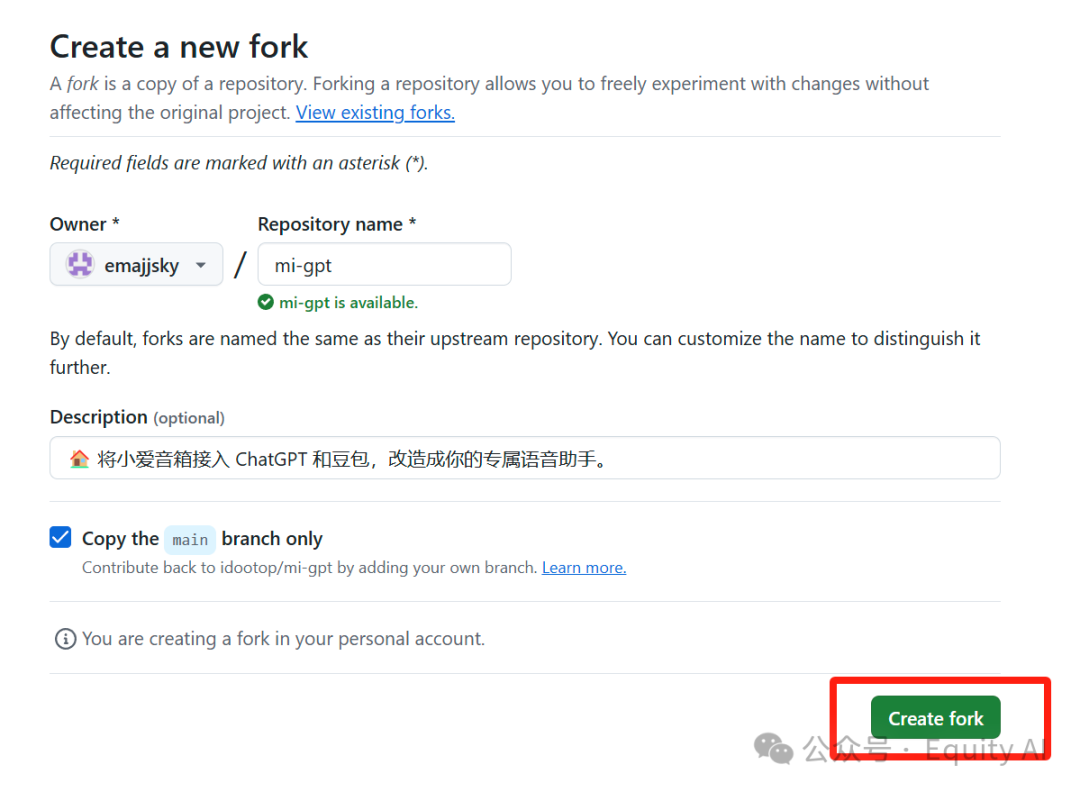
- The project has now been forked to your own repository

- How to find the project in your repository
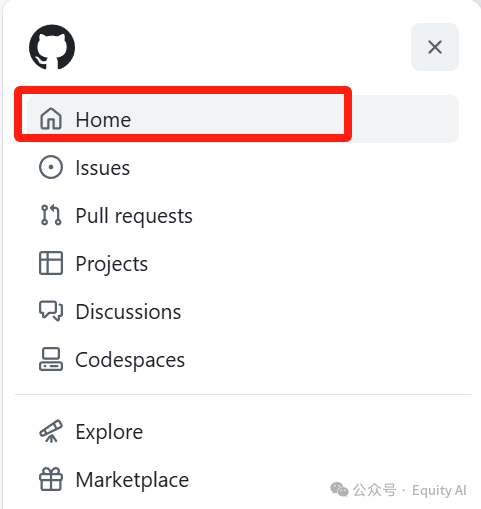
Go to the homepage and click the "three lines" icon in the top left corner
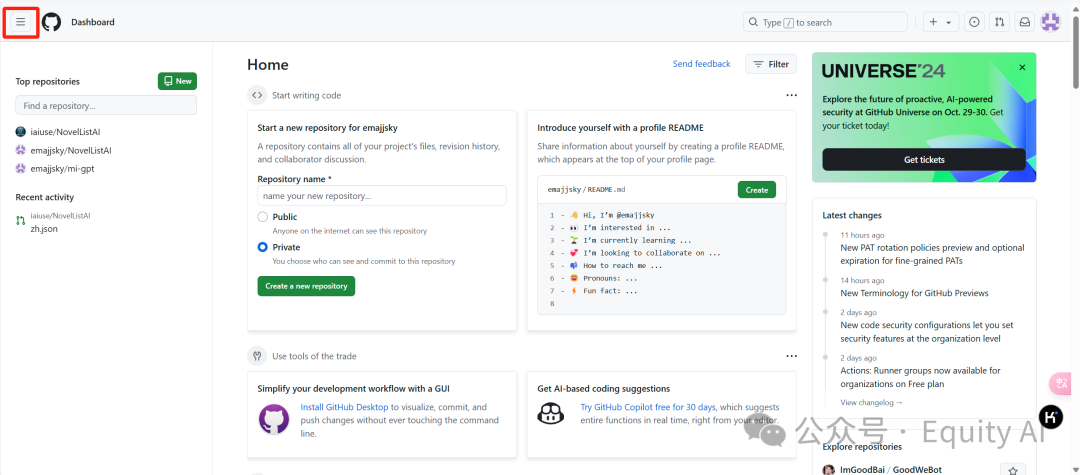
Click home, and you'll see the mi-gpt project you just forked. Click to enter the project page
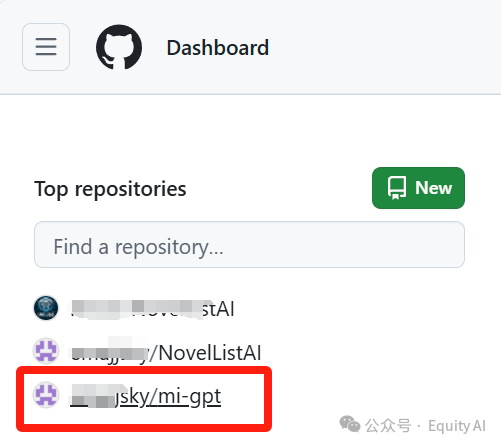
- Copy the repository address: first confirm you're on your own repository project page, then click the green "code" button, then click the copy button in the address bar
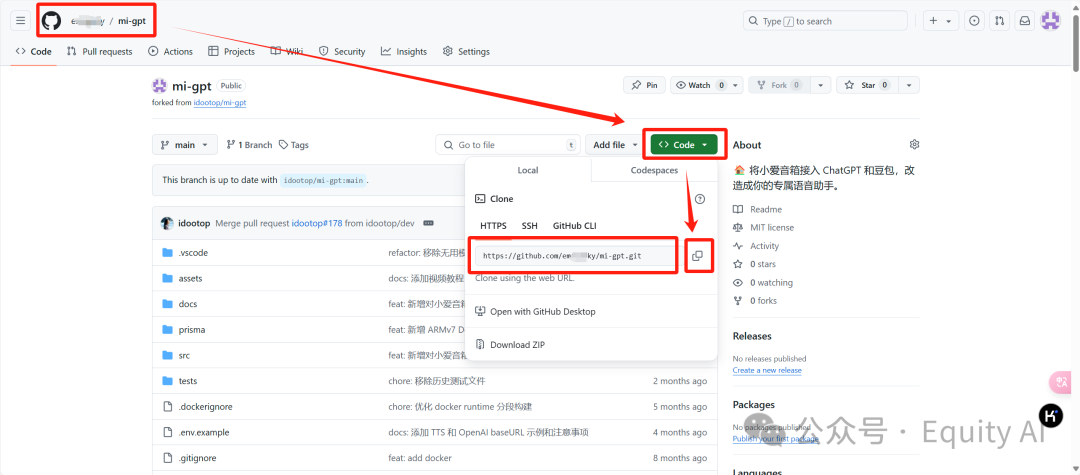
- This step copies the official project to your own repository and gets your repository address
Step 5: Open vscode, clone the project, and locate the configuration file
- Open VSCode
- For initial VSCode configuration, refer to Teacher Dayu's tutorial Day 2 - the VSCode basic operations section in "How to Modify Locally + AI Interaction" (tutorial link:
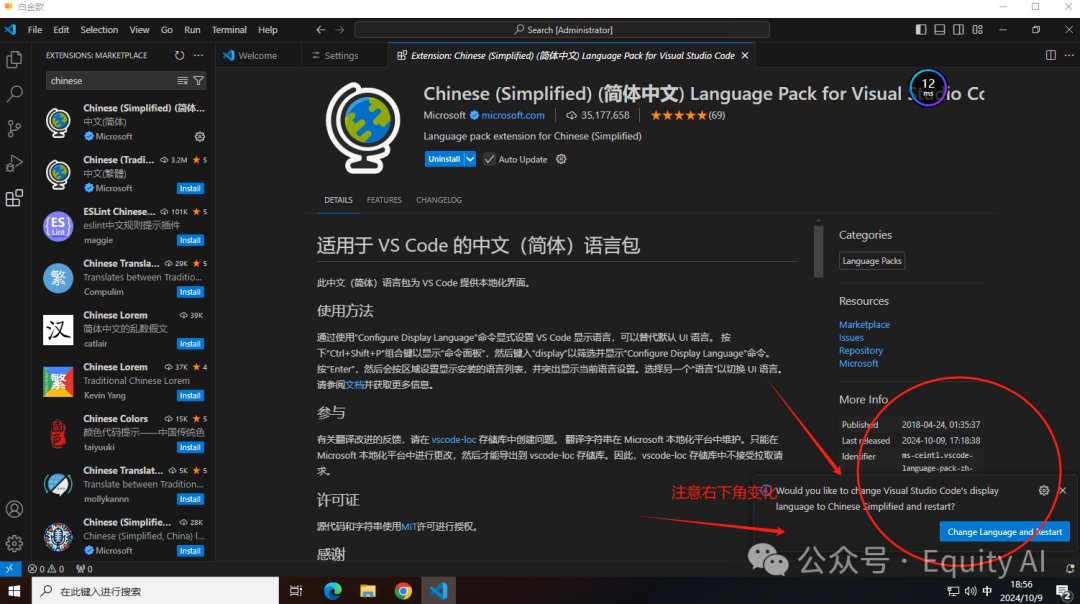
- Install the Chinese language plugin. Once you reach the interface shown below, reopen VSCode and it will switch to Chinese
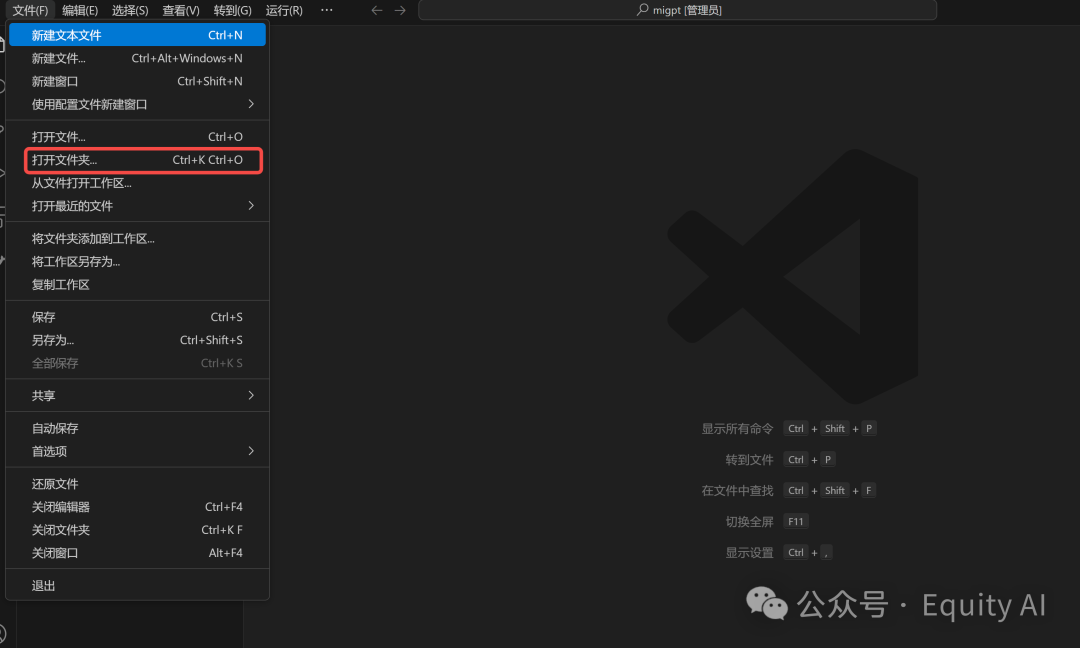
- Select a folder - name it whatever you like. We can create a folder called migpt, until you reach this step shown below:
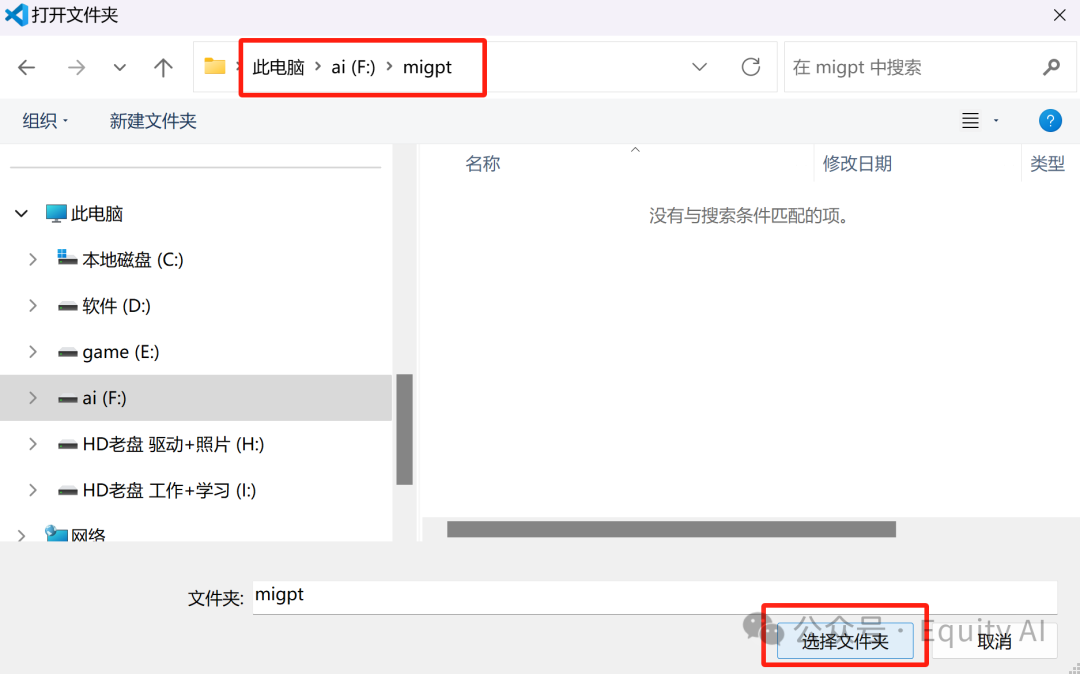
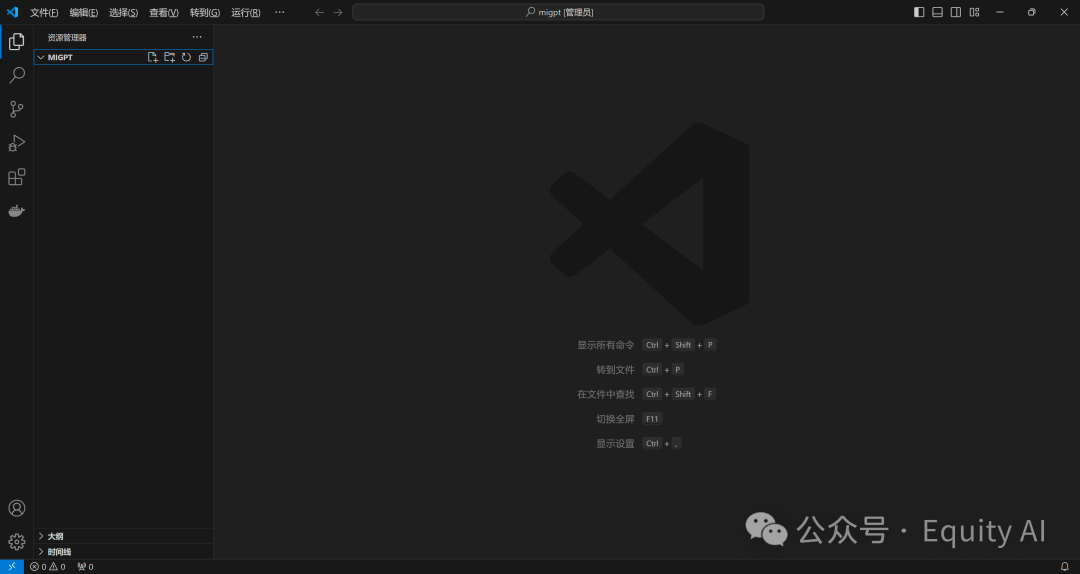
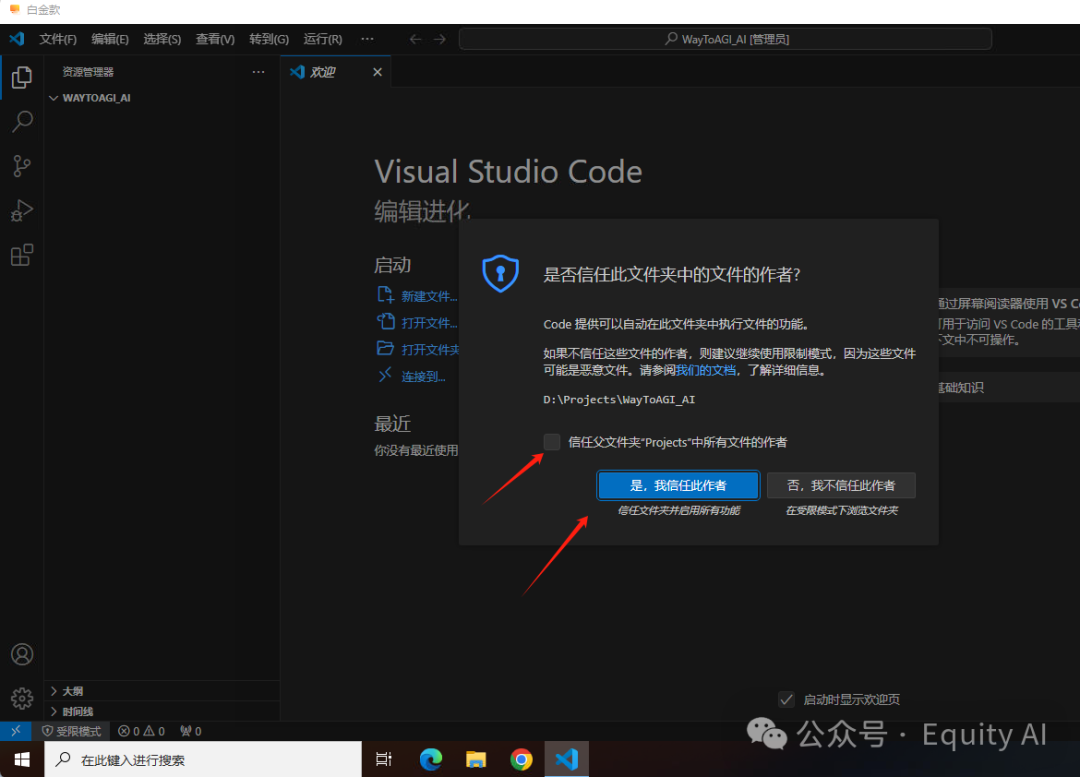
- If a trust prompt appears, just click "Yes"
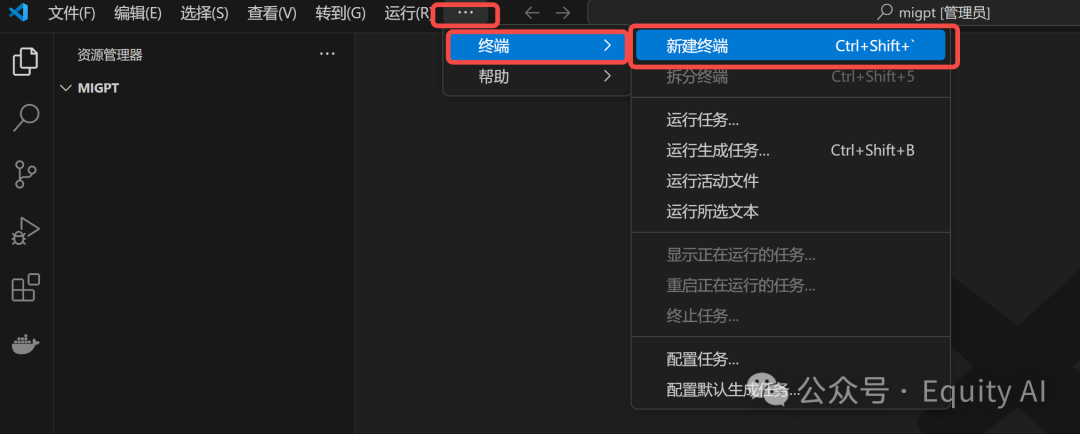
- Create a migpt project terminal in VSCode, entering the state shown on the right
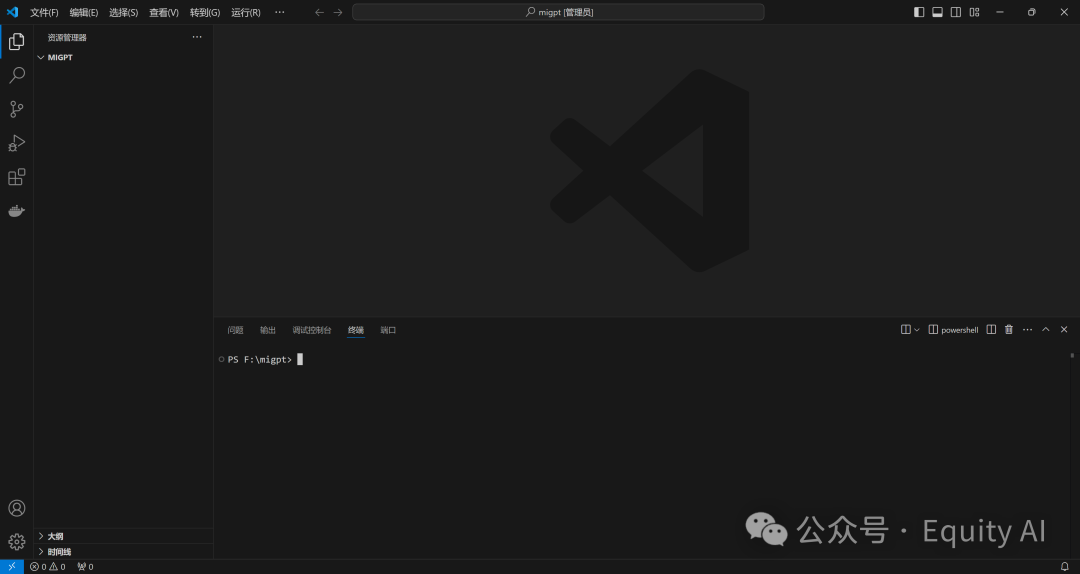
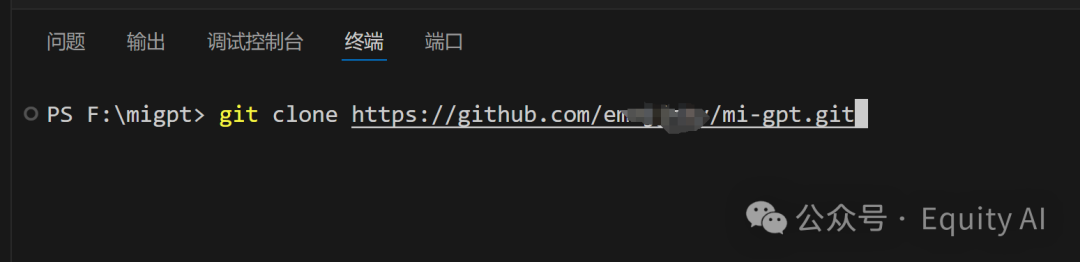
- Enter git clone followed by your own repository project address copied in step 4:
- For example: git clone https://github.com/idootop/mi-gpt.git
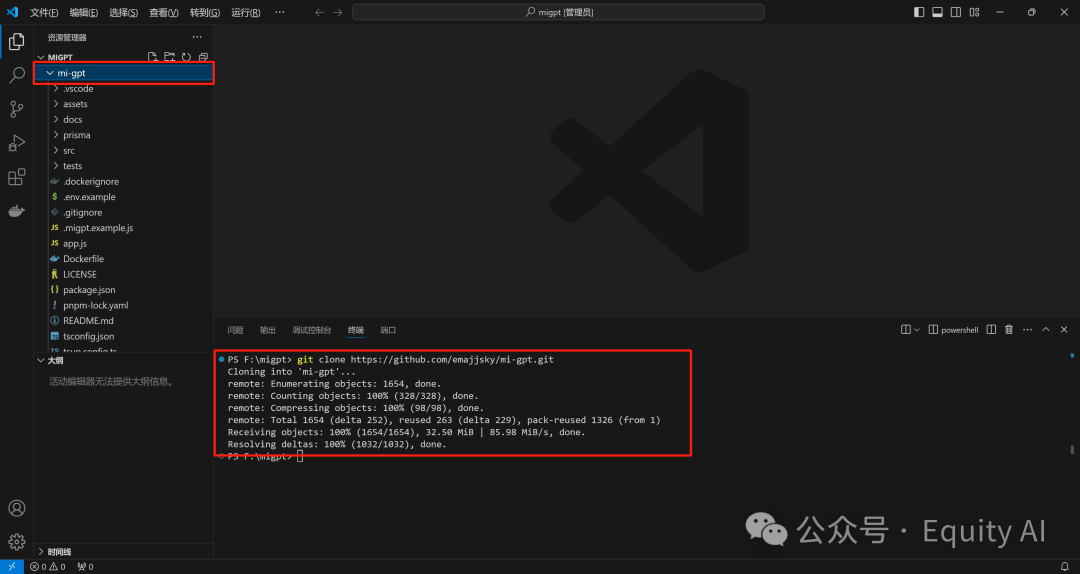
- Press Enter to clone the repository project. When you see the screen below, the cloning is complete. Click on mi-gpt in the left sidebar to view the project files
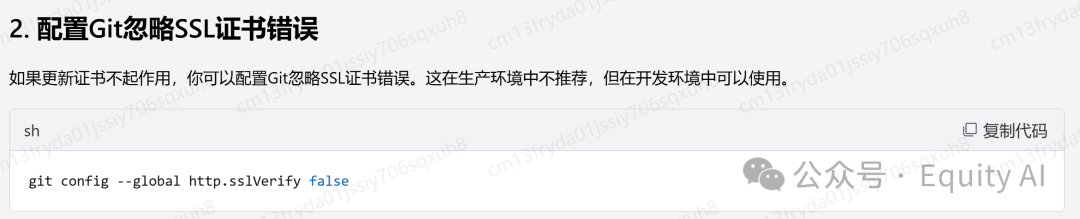
If you encounter this error:
, you can run the code below and then clone it again
- Modify the configuration files. The two files with "example" in their names are the ones we need to modify
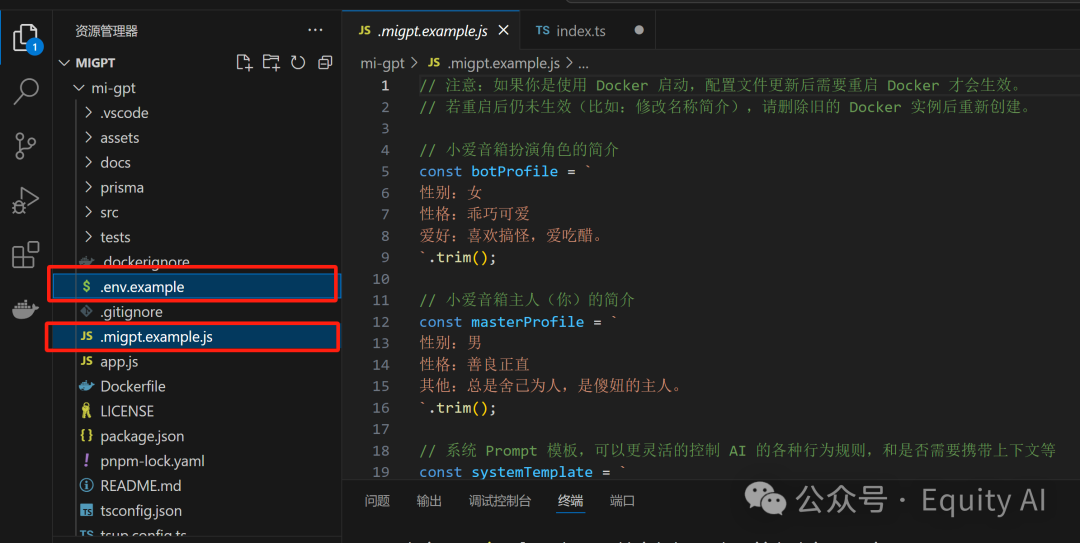
- Rename these two files to .env and .migpt.js
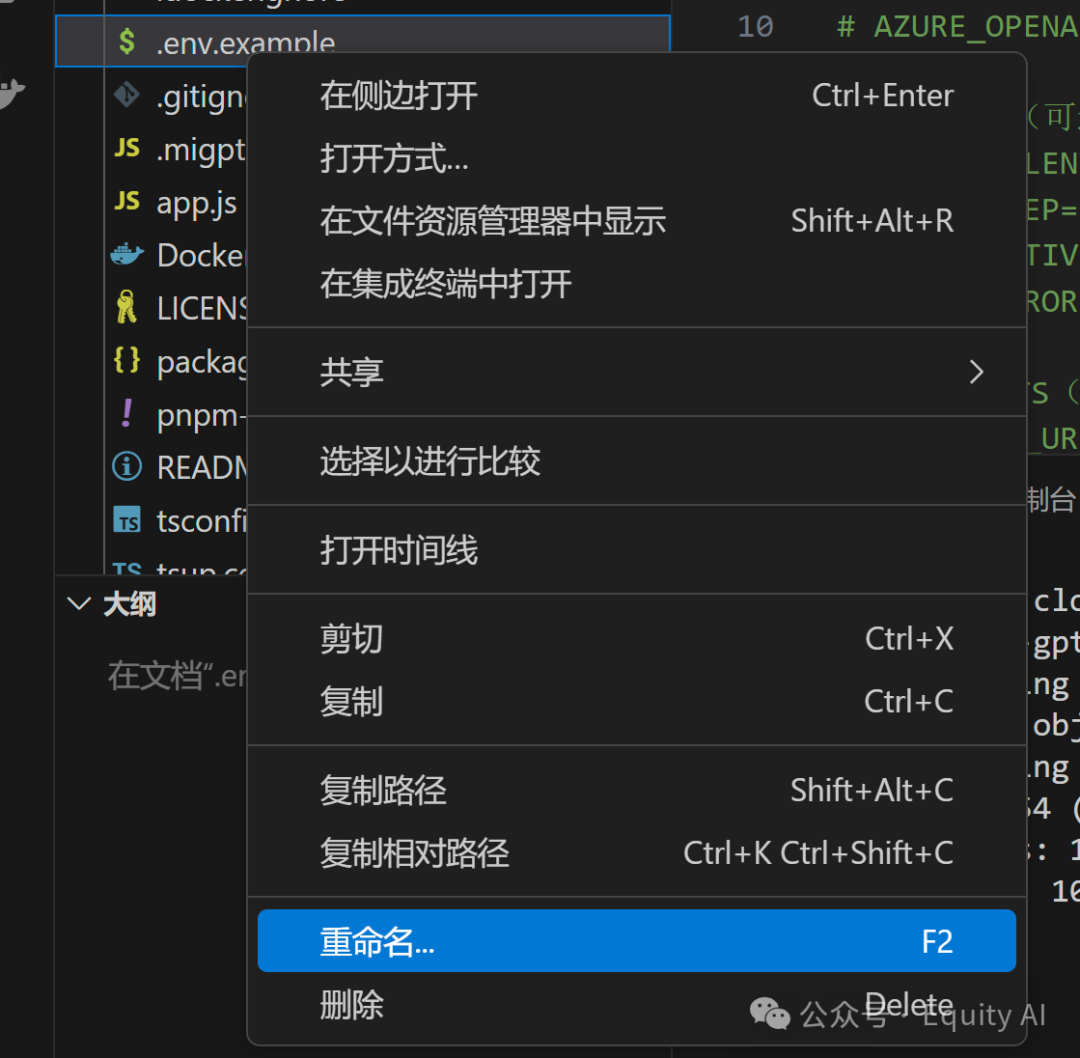
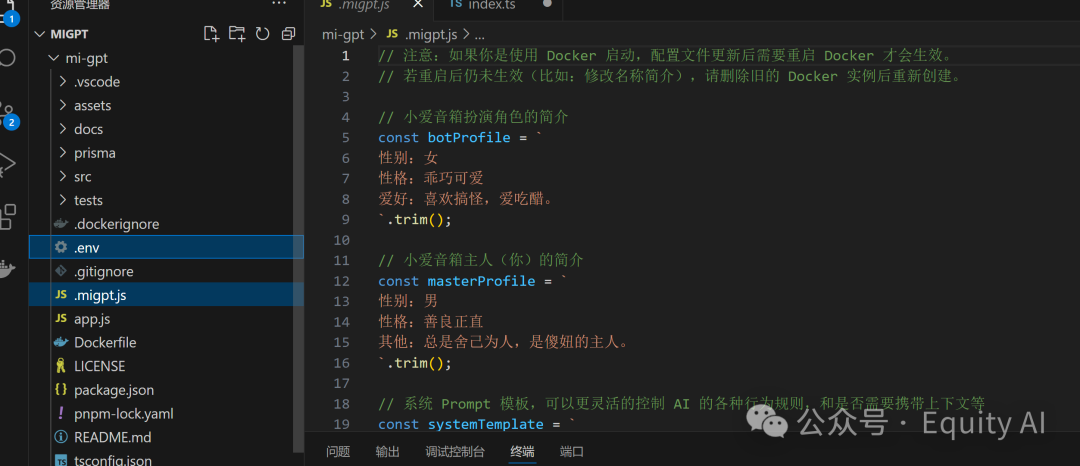
Step 6: Modify the vscode configuration file
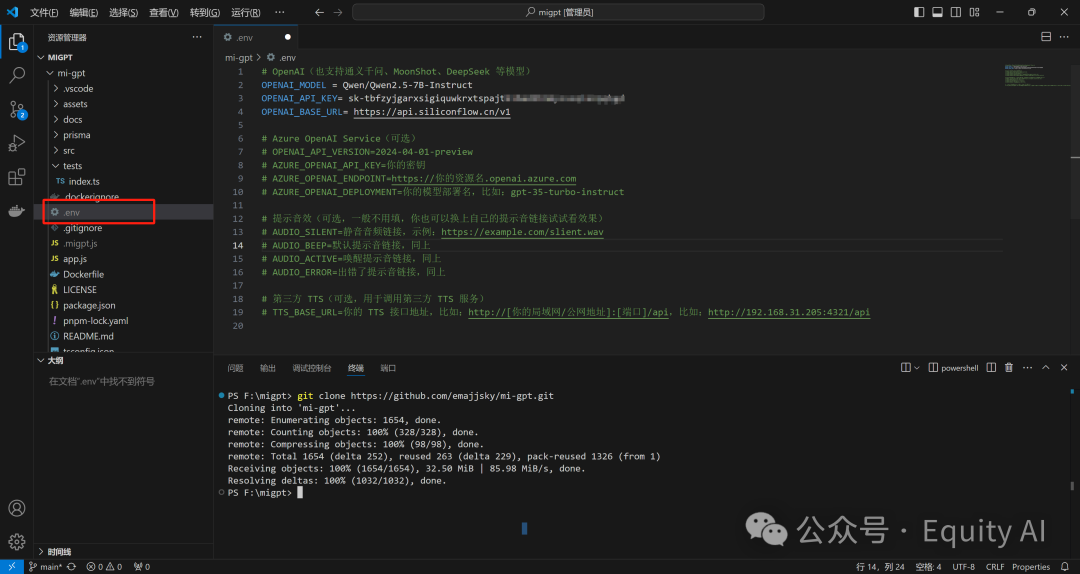
- Modify the .env file, refer to the official documentation
- Here we're using the Qwen 2.5-7b-instruction model, with the following configuration parameters:
- After modification, it should look like the image below:
Next, we can configure the .migpt.js file. Refer to the official documentation to modify commands and the LLM's persona prompts
- Fill in the Xiaomi ID and other information we obtained in step 2, corresponding to Xiaomi account ID, login password, and device name, around line 93
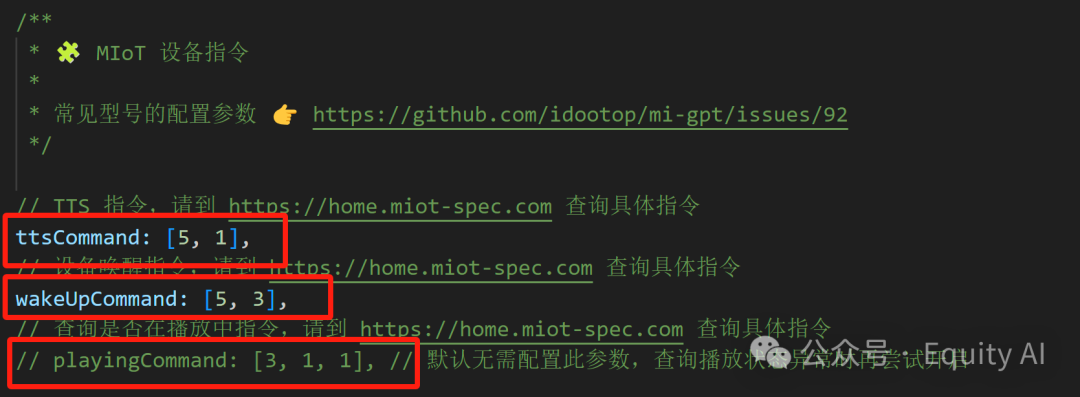
- Modify the MIoT device commands, as shown in the image below
- For my own two devices, the commands I found in the table are:
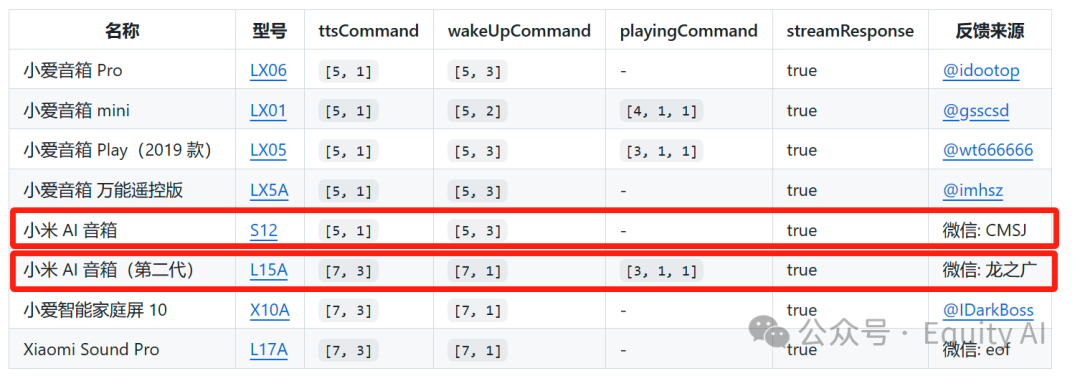
- I bound the S12 Xiaomi AI speaker, the commands in the table are [5, 1], [5, 3], which match the defaults so no modification is needed. The playingcommand in the table is empty, so no need to add it.
- If it's L15A, then you need to change it to the corresponding code and delete the two // before playingcommand, as shown below
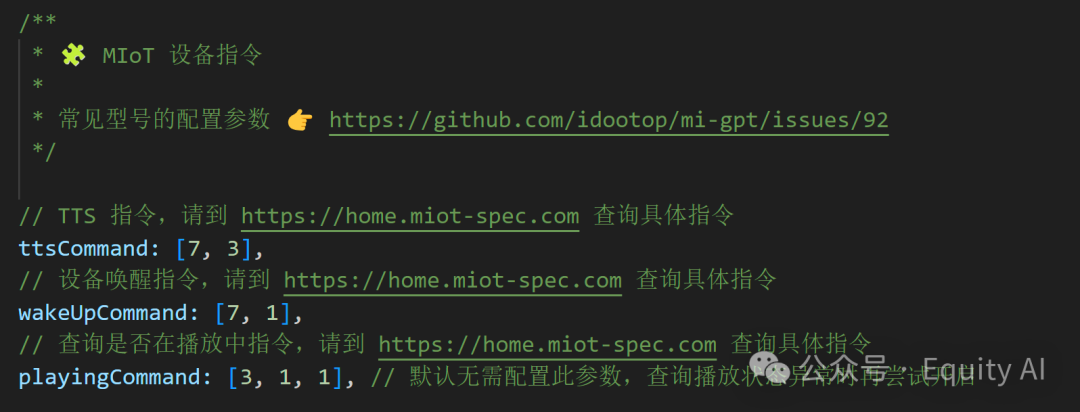
- Remember, all symbols here must use English punctuation, otherwise it will throw an error
- To modify the persona, you can refer to the official documentation or set it yourself. You can get it running first then modify. Here's a copyable example:
Lines 4-16, character prompt, you can get it running first then modify
Lines 104-119, reply wake command, change the name to make it consistent, you can get it running first then modify
Lines 149-156, enable continuous conversation feature, check the official documentation to determine if it's supported
(Some device models' MIoT interface doesn't support querying device playback status or has abnormal status queries, such as Xiaomi Speaker Play Enhanced Edition (L05C), which will cause some MiGPT functions to be abnormal and unable to use continuous conversation, etc. In this case, you need to disable streamResponse.)
Here you generally only need to change the continuous conversation feature to true or false. If the device supports it, you can change it to true
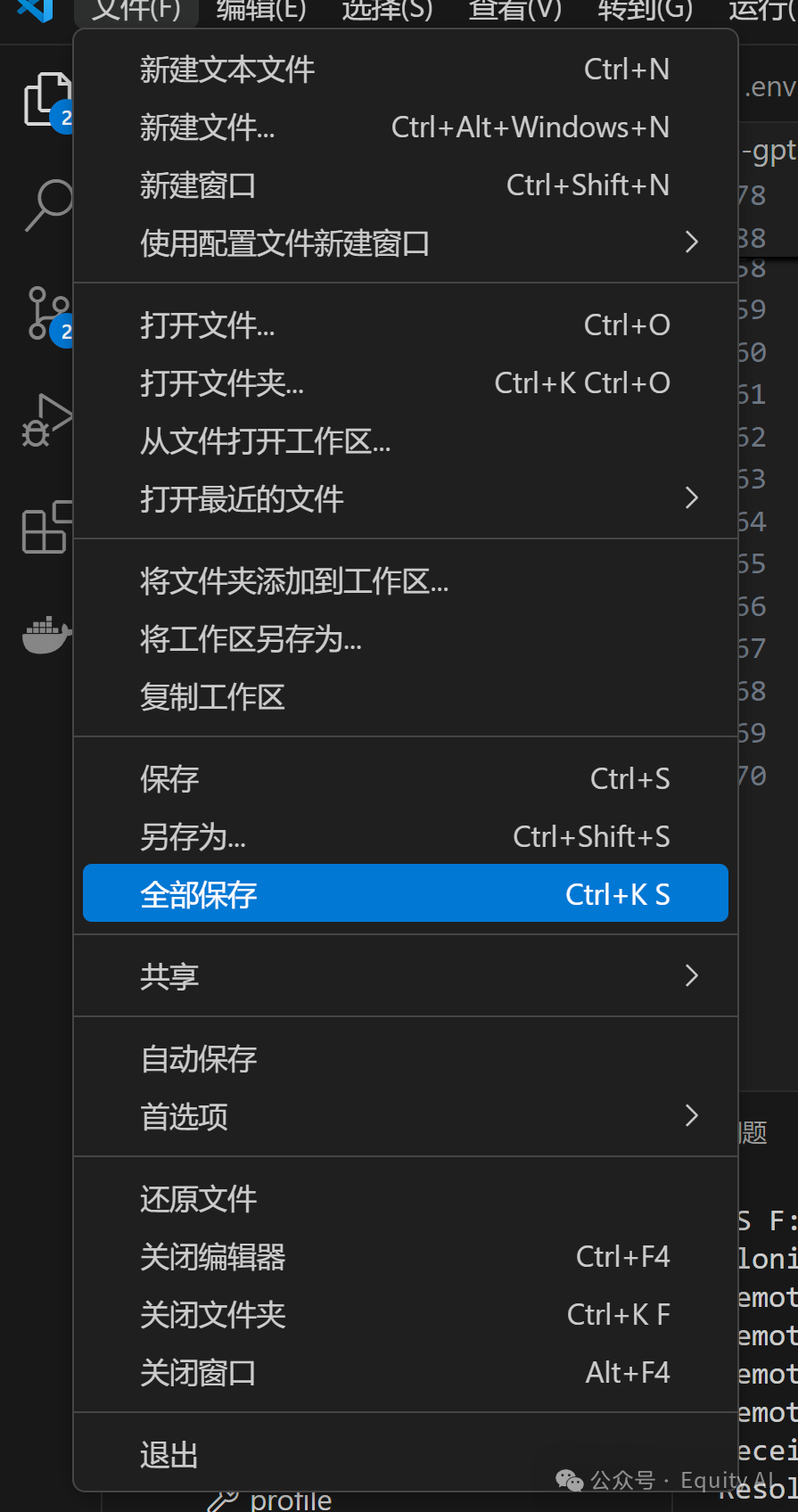
- Save the file by clicking File in the top-left corner, then click Save All
Step 7: Install dependencies and run
- In the terminal window below, click Terminal and enter
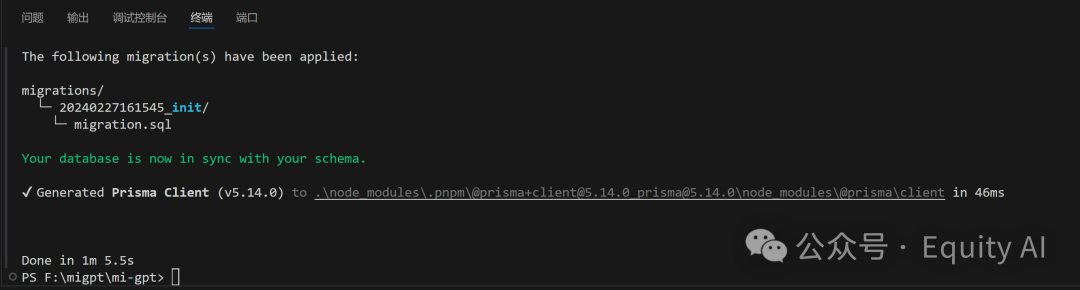
- Install dependencies by entering pnpm install
After installation completes, the interface will look like this:
If errors occur during installation and you see the following:
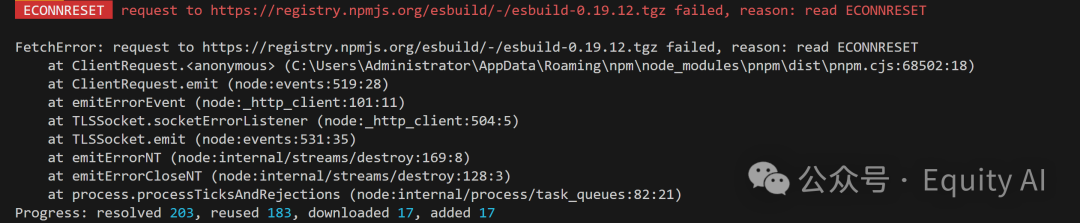
Enter this command: npm cache clean --force to clear the cache, then run pnpm install again

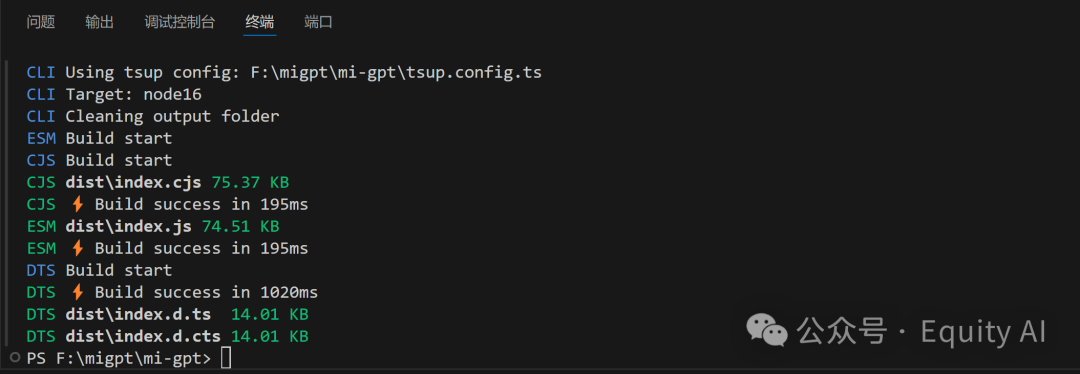
- Build the project by entering pnpm build
When you see the following interface, installation is complete
If you encounter the following error, locate the package.json file in mi-gpt and modify the build command on line 28

Be careful not to delete the quotation marks. After making changes, click the file and make sure to save it
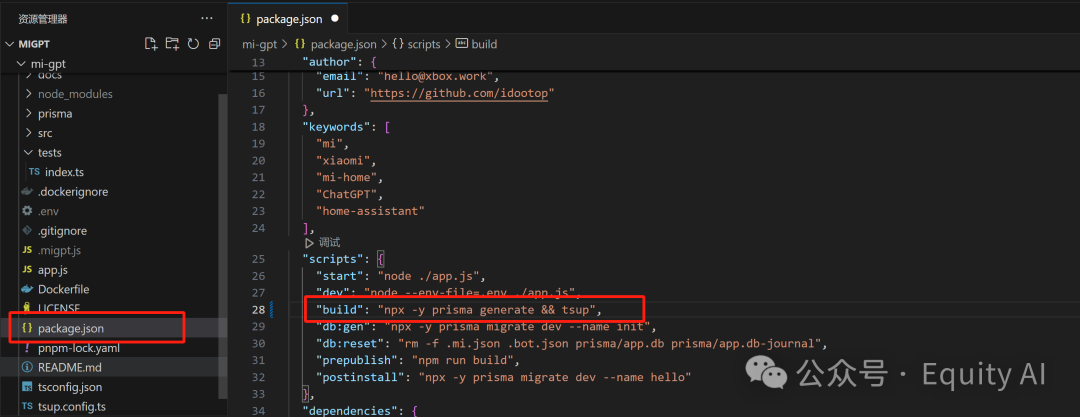
After saving, run pnpm build to complete the installation normally
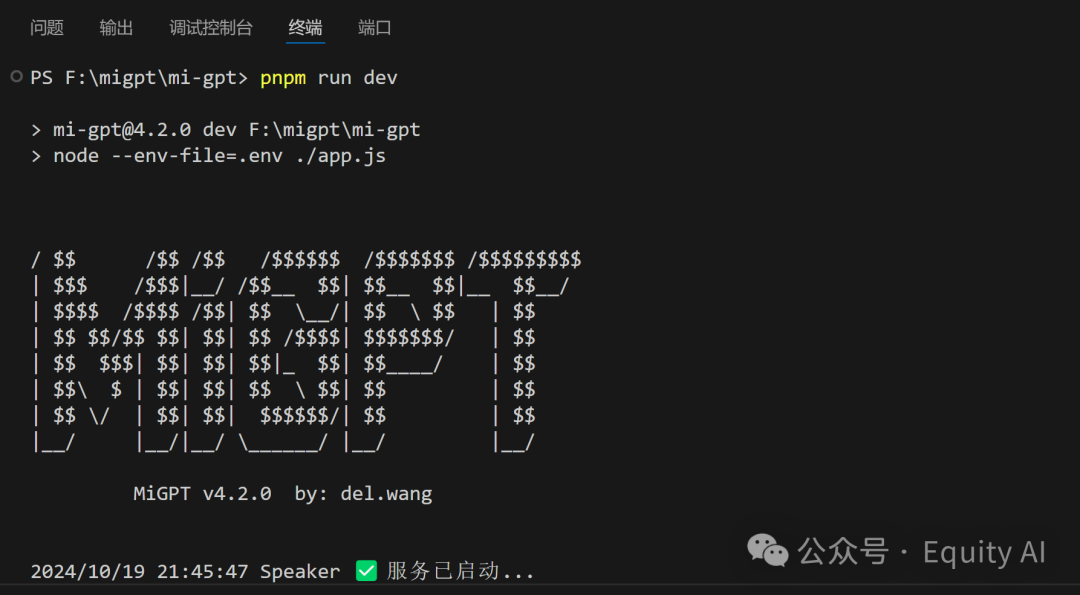
- To run the project, enter pnpm run dev
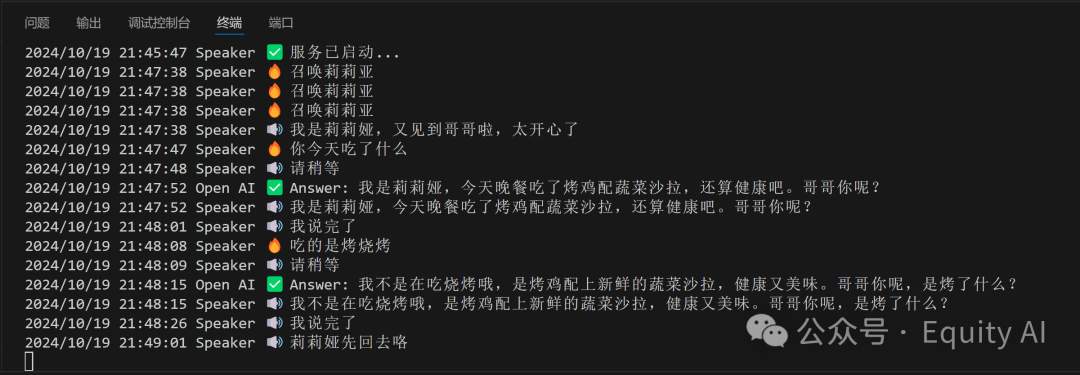
- When running successfully, you'll enter the page shown below. Each conversation will be displayed in the terminal
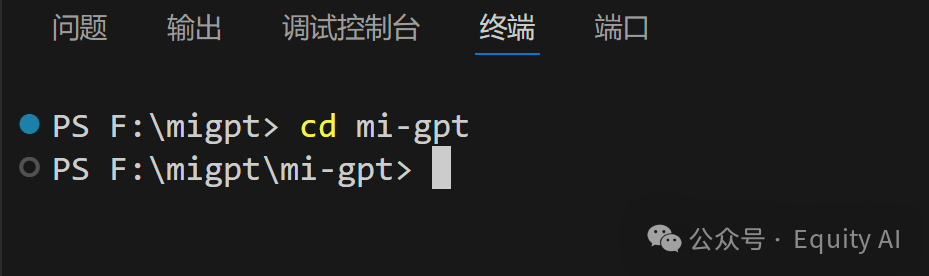
- Each time you need to start the service, follow the method shown below to enter the terminal. First enter cd mi-gpt, then run pnpm run dev to start the service

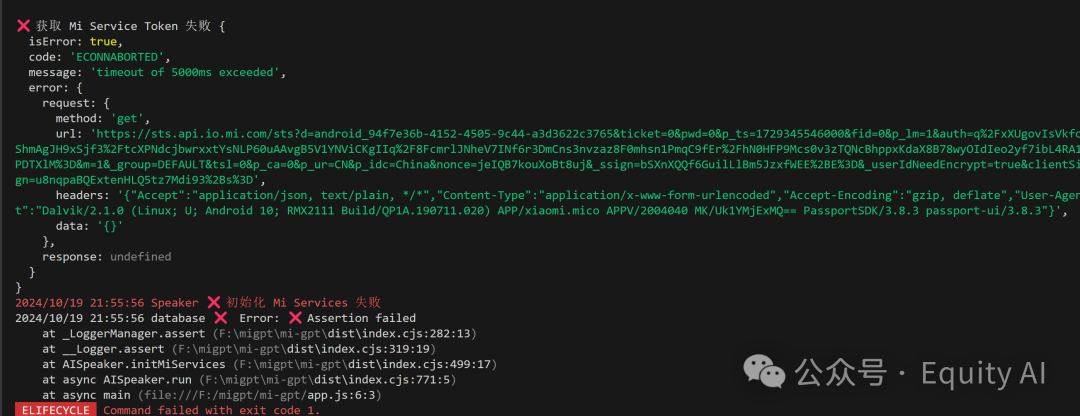
If you encounter the following error, don't panic. It's a network issue, please run it again
- Check out the running results. Remember to give the large model time to think - speaking too fast will cause problems

MANUAL INQUIRY
Need ClaudeCode or GPT recharge help?
Use the inquiry pages for ClaudeCode, GPT recharge, assisted purchase, and team sourcing.
Automatic payment is not configured. Pricing, region support, and timing are confirmed manually.