
Start with one working text-to-image workflow
Choose an installation for your computer, load the official beginner example, check its model, and run it before adding extensions or complex workflows.
What is the easiest way to install ComfyUI?
Start with the official Comfy Desktop guide for your operating system. Windows users who prefer an extracted folder and bundled Python can use the official Portable package matching their GPU. Check the current platform requirements before downloading.
Does a ComfyUI workflow include its models?
A workflow JSON describes nodes, settings, and connections. It does not contain the checkpoint weights. Install the exact models named by the workflow in the appropriate model folders, then refresh the model list or restart.
Why is Load Checkpoint empty or showing null?
Check that the requested checkpoint finished downloading, is in the active installation’s models/checkpoints folder or a configured search path, and has not been left inside an archive. Refresh or restart ComfyUI, then select the checkpoint again.
Can ComfyUI share models with Stable Diffusion WebUI?
Yes. Portable and manual installations can use extra_model_paths.yaml to add WebUI model directories. Desktop model locations can be managed through its storage controls; configuration details vary by version. Shared storage does not make a model compatible with every workflow.
MANUAL INQUIRY
Need ClaudeCode or GPT recharge help?
Use the inquiry pages for ClaudeCode, GPT recharge, assisted purchase, and team sourcing.
Automatic payment is not configured. Pricing, region support, and timing are confirmed manually.
ComfyUI turns image-generation tasks into connected nodes: load a model, encode a prompt, sample an image, decode it, and save the result. For your first session, use the official text-to-image example and its matching checkpoint. Get that small workflow working before importing a graph with dozens of unfamiliar extensions.
This guide follows the official installation, first-generation, and node documentation checked on October 25, 2026. Menu labels and supported hardware can change. The diagrams explain the workflow; they are not screenshots or generated-image benchmarks.
1. Choose an official ComfyUI installation2. Load the official beginner workflow and its model3. Understand the nodes before pressing Run4. Share existing WebUI models without duplicating them5. Fix the first error before adding more nodes6. Save a repeatable first workflowFrequently asked questionsWhat is the easiest way to install ComfyUI?Does a ComfyUI workflow include its models?Why is Load Checkpoint empty or showing null?Can ComfyUI share models with Stable Diffusion WebUI?
1. Choose an official ComfyUI installation
Choose the package for your operating system and hardware. A desktop launcher, an extracted portable folder, and a manual Python environment are different installation routes. Instructions for one do not always apply to the others.
Route | When it fits | First step |
Comfy Desktop | A managed local setup on a supported platform | Follow the official guide for your OS; choose local installation during setup |
Windows Portable | An extracted folder with its own Python environment | Choose the GPU package on the official Portable page and read its included README |
Manual installation | Linux, a custom environment, or direct dependency control | Use a separate Python environment and the official hardware-specific dependency instructions |
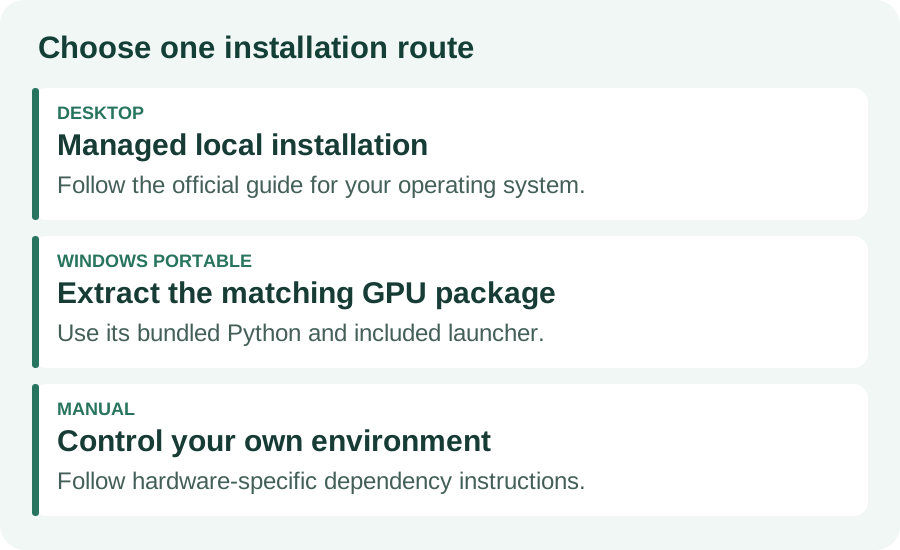
On Windows, download the official Desktop installer and follow its setup prompts. On an Apple Silicon Mac, use the official macOS Desktop guide. Check current operating-system and hardware requirements at those links instead of assuming every computer can use the same build. For a local first run, select the local installation option rather than a hosted service.
For Windows Portable, extract the complete archive with 7-Zip. Use the launcher supplied for your selected GPU package: the NVIDIA package documents run_nvidia_gpu.bat, while other packages have their own launchers. Keep the terminal open while ComfyUI runs. When it reports http://127.0.0.1:8188, open that address if a browser has not opened automatically. Do not install a second system Python just to launch the embedded-Python package.
For a manual install, create an isolated environment, clone the official repository, and follow the current dependency commands for your hardware. Avoid copying a CUDA command onto a different GPU platform. Once dependencies are ready, the manual guide starts ComfyUI with python main.py. Use that guide for driver and Python details rather than mixing several older tutorials.
2. Load the official beginner workflow and its model
Open the official first-generation guide linked below. It provides a text-to-image workflow JSON and an example image carrying workflow metadata. Download the JSON, then use Workflows → Open in ComfyUI. You can also drag an image with intact ComfyUI workflow metadata onto the canvas. An ordinary screenshot or a recompressed image may not carry that data.
The documented beginner example uses v1-5-pruned-emaonly-fp16.safetensors. Follow the model link in the official guide or the missing-model prompt. A workflow file does not include model weights, and installing ComfyUI does not mean every model is already installed. Confirm the download has finished and review the model’s license before using its output in a project.
For Portable, this checkpoint belongs in ComfyUI_windows_portable/ComfyUI/models/checkpoints. For a manual install, use models/checkpoints inside the active ComfyUI directory. In Desktop, open the model/storage controls for the active installation to find its model directory. Download behavior differs between versions: if your browser saves a file to Downloads, move it into the correct folder yourself.
Refresh the model definitions or restart ComfyUI, then choose the downloaded file in Load Checkpoint. Do not put a standalone diffusion model, a LoRA, or a text encoder in that dropdown and expect it to behave like the example checkpoint. Other model families can require separate loaders and different workflows.
3. Understand the nodes before pressing Run
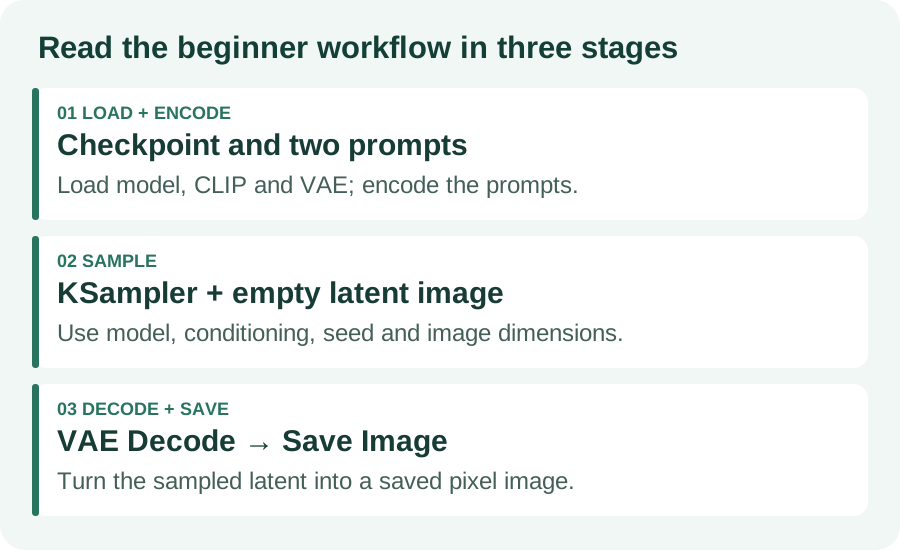
Node | Job in the beginner graph | What to check |
Load Checkpoint | Loads the model, text encoder, and VAE supplied by this checkpoint | The selected checkpoint matches the example |
CLIP Text Encode × 2 | Turns positive and negative prompts into conditioning | Both use the checkpoint’s CLIP output |
Empty Latent Image | Sets the starting image dimensions and batch size | Start with the example dimensions and one image |
KSampler | Samples a latent using the model, conditioning, seed, and settings | All required inputs are connected |
VAE Decode → Save Image | Converts the latent to pixels and saves the image | Decode receives the VAE and Save Image receives IMAGE data |
Start with the example’s settings. Change the positive prompt to a simple subject such as “a ceramic mug on a wooden desk, soft window light.” Keep dimensions, sampler settings, and batch size unchanged for the first run. Click Run, or use the shortcut shown in your version. Older tutorials may call the action Queue Prompt.
Wait for the result in Save Image, then save a local copy and export the workflow JSON from Workflows → Export. Give it a descriptive name and note the checkpoint filename. To compare prompts, keep the seed fixed and change one phrase at a time; settings that randomize the seed will change the result too. The same seed is useful for controlled comparisons, but is not a guarantee of identical output across software or hardware changes.
4. Share existing WebUI models without duplicating them
Portable and manual installations include extra_model_paths.yaml.example in the ComfyUI directory. Copy it as extra_model_paths.yaml and edit a copy after backing up existing configuration. The following abbreviated example assumes your WebUI installation is D:/stable-diffusion-webui. Replace that path with your own; use spaces for indentation.
a1111: base_path: D:/stable-diffusion-webui/ checkpoints: models/Stable-diffusion vae: models/VAE loras: models/Lora
Restart ComfyUI after saving the configuration. If the checkpoint still does not appear, check the actual file location and the base_path rather than downloading another copy immediately. Desktop has its own storage controls and version-specific configuration locations; preserve the paths it created during setup. Sharing a directory saves duplicate storage but does not convert model formats or add missing workflow nodes.
5. Fix the first error before adding more nodes
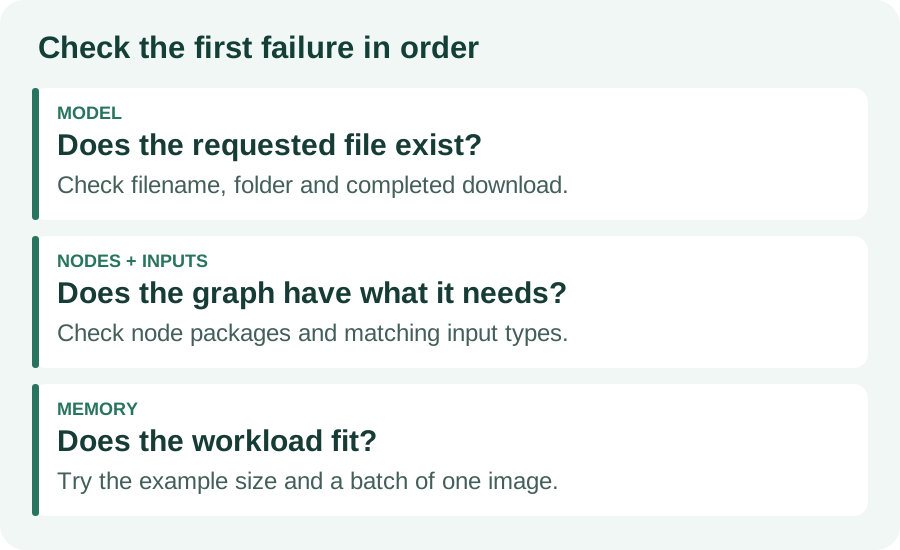
Symptom | First check | Next action |
Load Checkpoint is empty or null | File location, completed download, active installation | Refresh or restart; select the model again |
A node is marked missing | Whether it is a core node or a third-party extension | Update for a newer core node; review the extension’s source and dependencies before installing it |
An input is marked red | Missing input or incompatible connection type | Reconnect the matching data type using the example graph |
Out-of-memory error | Image dimensions, batch size, and model requirements | Try one image at the example size; close other GPU-heavy tasks |
Browser cannot reach the local interface | Whether the launcher is still running | Read the terminal error and use the URL it actually reports |
If an imported workflow fails, return to the official beginner example. If that works, compare the new workflow’s models and node packages with your working baseline. Avoid installing every suggested extension at once: each package can add code and dependencies. Save a working workflow and configuration before updates so you can identify what changed.
6. Save a repeatable first workflow
Your first milestone is a workflow you can reopen: the intended checkpoint is selected, required inputs are connected, an image appears in Save Image, and the exported JSON loads again. Keep the model filename and a note of your installation route alongside it. Then explore one feature at a time, such as a different prompt or an image-to-image example for a compatible model.
Frequently asked questions
What is the easiest way to install ComfyUI?
Start with the official Comfy Desktop guide for your operating system. Windows users who prefer an extracted folder and bundled Python can use the official Portable package matching their GPU. Check the current platform requirements before downloading.
Does a ComfyUI workflow include its models?
A workflow JSON describes nodes, settings, and connections. It does not contain the checkpoint weights. Install the exact models named by the workflow in the appropriate model folders, then refresh the model list or restart.
Why is Load Checkpoint empty or showing null?
Check that the requested checkpoint finished downloading, is in the active installation’s models/checkpoints folder or a configured search path, and has not been left inside an archive. Refresh or restart ComfyUI, then select the checkpoint again.
Can ComfyUI share models with Stable Diffusion WebUI?
Yes. Portable and manual installations can use extra_model_paths.yaml to add WebUI model directories. Desktop model locations can be managed through its storage controls; configuration details vary by version. Shared storage does not make a model compatible with every workflow.
MANUAL INQUIRY
Need ClaudeCode or GPT recharge help?
Use the inquiry pages for ClaudeCode, GPT recharge, assisted purchase, and team sourcing.
Automatic payment is not configured. Pricing, region support, and timing are confirmed manually.