
MANUAL INQUIRY
Need ClaudeCode or GPT recharge help?
Use the inquiry pages for ClaudeCode, GPT recharge, assisted purchase, and team sourcing.
Automatic payment is not configured. Pricing, region support, and timing are confirmed manually.
How to top up GPT? Must-read for overseas payments! WildCard step-by-step tutorial! Today I'm introducing a more powerful and convenient virtual overseas Mastercard: WildCard.
First, let me highlight the key features I've summarized from my experience using it:
#No special network required for registration and use
#No overseas phone card needed, just a domestic +86 mobile number to register and use (also supports +852 Hong Kong mobile numbers)
#No Visa card or crypto top-up needed, just Alipay to recharge and use (also supports Hong Kong Alipay AlipayHK for top-ups)
#Free overseas phone card provided
#Free overseas email provided (Gmail accounts also available for $0.99 each)
#Card usage fee is $10.99 for 2 years, averaging just over 30 yuan per year
#Top-up fee 3.5%, transaction fee 0% (1% for non-US transactions - for example, using this card for GPT Plus membership is a US transaction with no transaction fee, but using the card on Meituan in China is a non-US transaction with a 1% fee), pre-authorization reversal fee $1, refund fee 2%
#The most impressive feature is that it actually supports withdrawing funds you've already topped up, at real-time exchange rates with absolutely no exchange rate loss (I'll demonstrate this in the tutorial below)
# Use GPT or Claude native memberships at half price (not third-party wrappers)
# Safely use GPT-4 or Claude3 API (useful for developers working on general programming)
Registration and usage tutorial begins:
First, let's copy the link below and open it in a browser. https://bewildcard.com/i/OPM1APOI
Then, as shown in the image below, you can first switch the language in the upper right corner to "Chinese", then click the "Login/Register" button.

Since we're using this for the first time and haven't registered yet, click the "Go to Register" button as shown below.

Next, as shown below, enter your domestic phone number that you use daily, then send the SMS verification code (if the SMS verification code doesn't send, it's definitely due to using a special network - just turn it off and use a normal network), enter the SMS verification code and click the "Submit Registration" button.

Next, on the page shown below, we'll first click the "Activate Now" button for the overseas payment service. We won't try the overseas AI-related services for now - we'll write a separate tutorial for that another time.

Now we're at the card opening interface shown below. We'll select the 2-year service period, which actually comes out to a discounted price of $10.99 USD, roughly 30+ RMB per year - the cost is reasonable. After reviewing the card opening instructions, click the "Pay" button.

An Alipay payment QR code appears directly. You can scan it with Alipay for quick payment. After successful payment, click the "I have completed payment" button shown below.

Next, you can customize the first and last name for your overseas Master Mastercard. I'll just use the pinyin of my real name here, along with my email, then click the "Next" button.


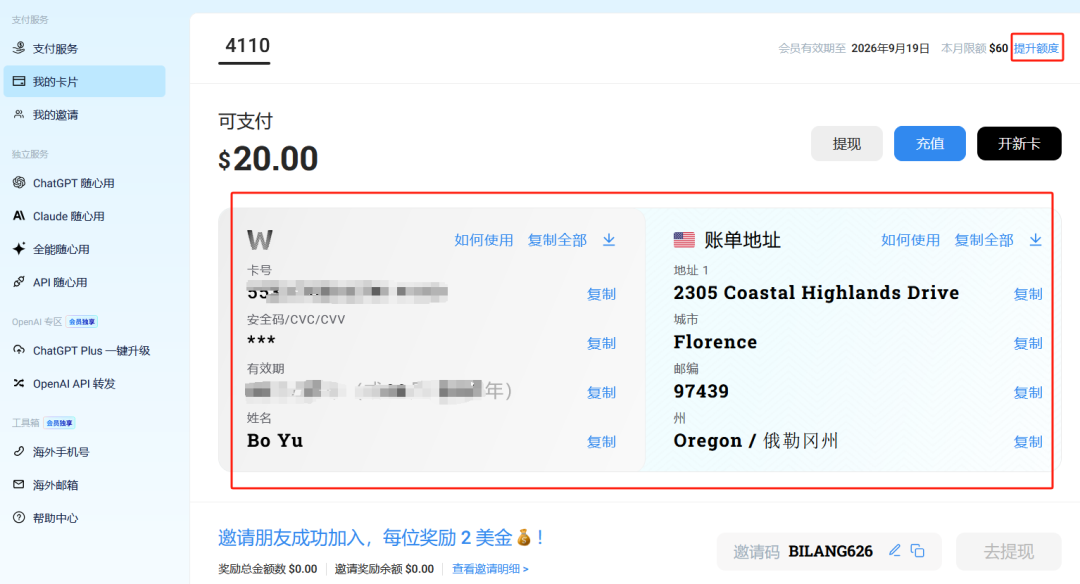
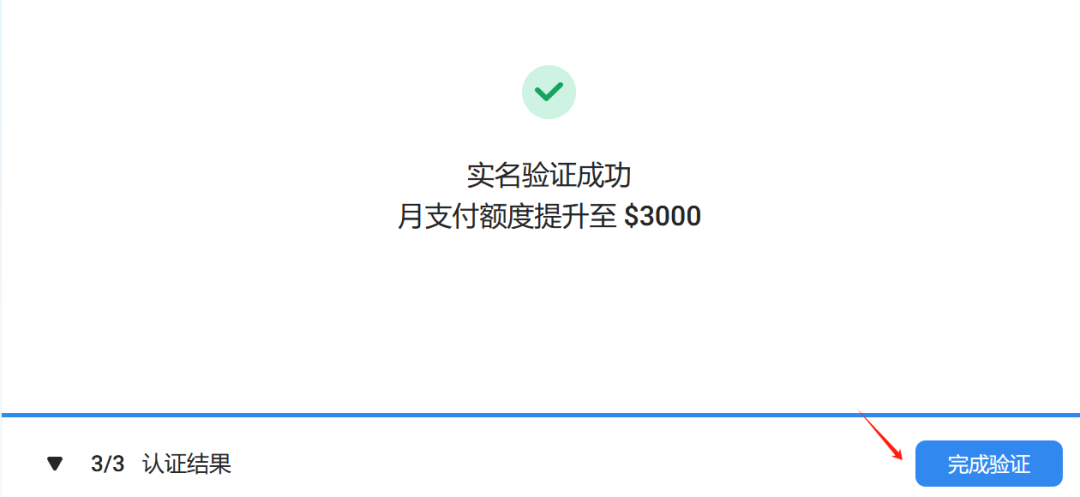
With that, we've successfully activated the WildCard overseas virtual card. As shown in the image below, without real-name verification, you can pay up to $60 per month by default. If you're just paying for GPT Plus membership at $20 per month, that's basically enough. Cursor is also only $20 per month. If we verify with Alipay real-name authentication, we can pay up to $3,000 per month - depends on your needs. I'll just click the "Skip Verification" button for now, and can verify anytime later if needed.


Make sure to understand the card usage guidelines - following the rules ensures better and longer-lasting use of the card.

Next, let's look at the dozens of overseas payment subscription scenarios that WildCard supports, as shown below. These aren't for direct real purchases - they just showcase the supported platforms and websites, and display how much various services cost, making it convenient for everyone to top up.
Here's a quick demo - I'll select the Cursor service and click the "Next" button.

It directly displays our card number, expiration date, CVC, name, and billing address information (you can always see this by clicking "My Cards" in the left menu). Cursor's monthly subscription is $20, so we can choose to top up $20 (top up only what you need, don't leave too much balance in there). You can see there's a 3.5% top-up payment fee, so the actual payment is $20.7. Click the "Pay" button.

An Alipay payment code appears again. After scanning and paying, click the "Payment Completed" button, and it's credited instantly. Plus, the exchange rate is very friendly - basically consistent with the current international rate, with no exchange rate loss.

Next, if we actually want to subscribe to Cursor's monthly membership, just go to the Cursor official website and click on paid subscription (as shown below). At the final payment screen, just enter the card and billing address information from above.

Let's also look at the daily card balance top-up method. As shown below, click "My Cards" -> "Top Up". There are two top-up methods: Alipay and Hong Kong version Alipay (AlipayHK).
One thing to note when topping up: sometimes after scanning the code, instead of the payment screen, you'll see a webpage (as shown in image 2 below) asking if you're topping up for yourself, etc. This is to prevent fraud and scam payments. Just answer honestly, and then the normal payment screen will appear.

By the way, as shown in the image below, remember to click "Settings" in the upper right corner of the WildCard dashboard, then "Set Payment Password". We need to set up a 6-digit payment password (you can also see there's a monthly statement feature - I remember when using Alibaba Cloud International, they required the payment card to provide monthly statements and such).

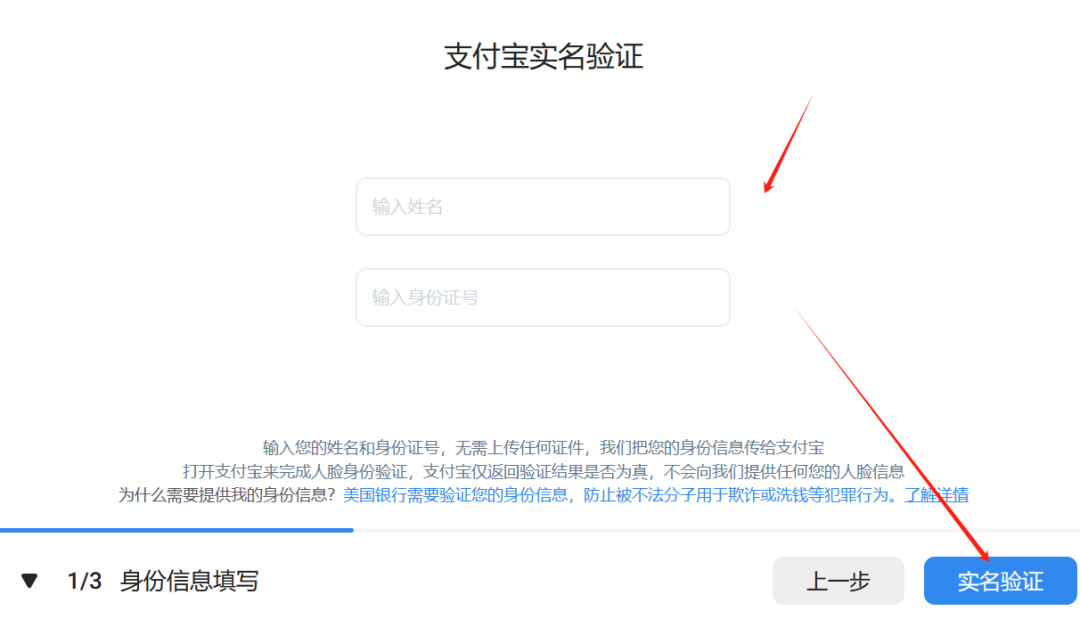
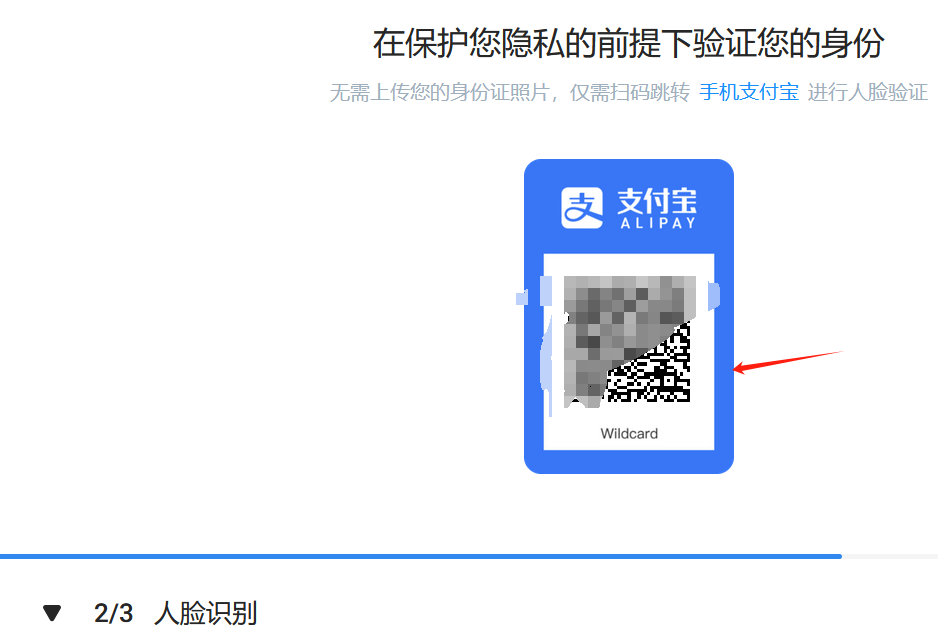
Let me demonstrate the identity verification process for increasing the monthly payment limit below.
As shown in the image below, click "My Cards" -> "Increase Limit", then follow the instructions by entering your name and ID number to complete facial recognition verification via Alipay mobile scan. It's very quick and convenient.
There's also a really significant balance withdrawal feature - let me demonstrate that as well.
As shown in the image below, click to enter "My Cards" -> "Withdraw" page, enter the amount you want to withdraw, and click the "Withdraw All" button.

Then it immediately shows the withdrawal was successful. Although it says it takes 1-3 days to arrive, it actually arrives instantly. You can see that withdrawing $20 gave me 141.63 RMB back, but the real-time exchange rate was only 141.3 RMB, so there's basically no exchange rate loss.
Finally, let me mention a few other features of the WildCard platform.
For example, as shown in the image below, there's a free overseas phone number feature, which is essentially an overseas phone number verification platform. It offers 3 free uses, and after that, each use only costs $0.49 (as shown in image 2). It's a thoughtful little feature that makes it convenient for us to register for various overseas website platforms and services using an overseas phone number.

There's also an overseas email feature - you can register their overseas email for free, or choose to purchase a Gmail account for $0.99.
These are pretty straightforward, so I won't go into detail. Let me just show you some quick screenshots of the process for applying for their overseas email.

If you have any other questions, you can copy the link below and open it in your browser to find tons of FAQs and helpful tutorials.
https://help.bewildcard.com/zh-CN/
By the way, if you open a second card, it's $2 cheaper. Follow Charliiai.com for more AI tips and tricks~

MANUAL INQUIRY
Need ClaudeCode or GPT recharge help?
Use the inquiry pages for ClaudeCode, GPT recharge, assisted purchase, and team sourcing.
Automatic payment is not configured. Pricing, region support, and timing are confirmed manually.